
Placing a Hierarchical Block
To place a Hierarchical Block, use: Place>Hierarchical Block from the menu; or use the Place Hierarchical Block icon ( ) from the Schematic toolbar.
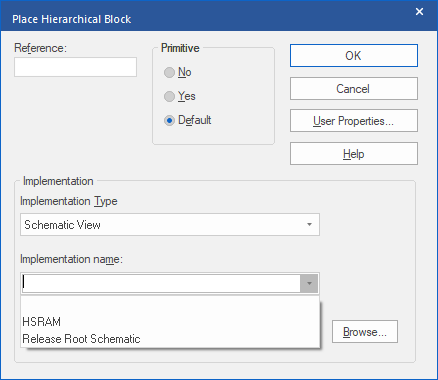
The Hierarchical Block needs: a Reference, typically following the convention of a Part Reference, starts with a Letter, ends with a number, and doesn’t contain any spaces; an Implementation Type, Schematic View for an underlying Schematic; the Implementation Name, name of the Schematic folder that contains the Schematic to reference. Leave the path empty to specify “in the current DSN file”.
Whilst it is possible to make references to external DSN files, this isn’t an especially reliable way of constructing hierarchical designs since the full path name is added and if server names are changed in the future (by IT) the links to these schematics will be lost.
Once the form is filled and OK is left-clicked, the cursor in the Schematic Page will be a cross, left-click and drag to create a rectangle for the hierarchical block. If there is an existing underlying Schematic with Hierarchical Ports, Hierarchical Pins will be added to the block once it has been placed. The Hierarchical Pins can be moved by selecting with a left-click and dragging the Hierarchical Pin around the boundary of the Hierarchical Block rectangle. If Pins are dropped on top of each other, the “hot-spot” will disappear, since a connection will have been made, but the Hierarchical Pins can be separated with a left-click and drag on the Hierarchical Pins, only one Hierarchical Pin will ever be selected by this action.
Changes to Hierarchical Blocks
Hierarchical Pins can be added to Hierarchical Blocks by selecting the Hierarchical Block and using: Place>Hierarchical Pin from the menu; or using the Place Hierarchical Pin icon  from the Schematic toolbar.
Hierarchical Ports can be added to the underlying Schematic using: Place>Hierarchical Port from the menu; or using the Place Hierarchical Port icon  on the Schematic toolbar.
Once the Hierarchical Pins have been added to the Hierarchical Block, or Hierarchical Ports have been added to the underlying Schematic, the Hierarchical Block can be selected and a right-click>Synchronize Down used to synchronise the Hierarchical Ports in the underlying Schematic with the Hierarchical Pins on the Hierarchical Block (matches the Hierarchical Block), or, a right-click>Synchronize Up used to synchronise the Hierarchical Pins on the Hierarchical Block with the Hierarchical Ports in the underlying Schematic (matches the underlying Schematic). The Synchronize Down function will add Ports to the upper left and upper right of the first Page of the underlying Schematic, avoiding any existing objects on the Page, and remove any Hierarchical Ports that no longer have matching Hierarchical Pins. The Synchronize Up function will add Hierarchical Pins to the lower left and lower right of the Hierarchical Block, but wont be added if there is insufficient space, and any Hierarchical Pins that no longer have matching Hierarchical Ports in the underlying Schematic will be removed.
All content Copyright 2022 Parallel Systems Ltd.