
All content Copyright 2022 Parallel Systems Ltd.
This lab doesn’t require any specific design to run, either of the training projects, CIS based, or non-CIS based, could be used.
This lab does require an installation of GhostScript follow these lab instructions. The installer can be downloaded from: https://www.ghostscript.com/download/gsdnld.html get the 64-bit General Public License version and run the downloaded executable to install the converter.
(It is also possible to use Adobe Acrobat Distiller by setting that as the Converter option. Adobe Acrobat Distiller is available as part of an Adobe Acrobat installation or in some corporate installations as a “site wide” PDF converter, it is not available as a standalone product)
1. Open a training project if one is not already open.
2. Select the training.dsn file entry in the Project Manager window.
3. Select File>Export>PDF from the main menu
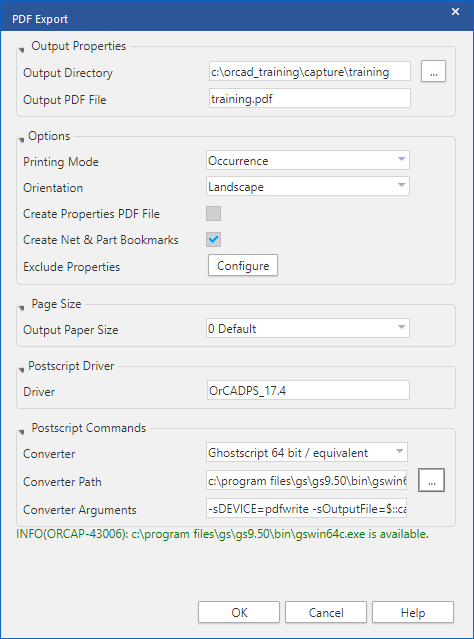
For the purposes of this lab the defaults are fine.
4. If necessary, configure the Converter Path, this will be “something like”:
C:\Program Files\gs\<gs version>\bin\gswin64c.exe
for Ghostscript, or:
C:\Program Files (x86)\Adobe\Acrobat DC\Acrobat\acrodist.exe
for Acrobat Distiller
Use the drop-down to select the Converter and use the browse (…) button to browse to the installed converter.
5. Left-click>OK and training.pdf will be generated in the current DSN file directory.
6. Start a Windows (File) Explorer and browse to the directory for the active DSN file, check the Project Manager to confirm the location, double-click on the training.pdf file to open it in a PDF viewer, like Acrobat Reader.

End of Lab
All content Copyright 2022 Parallel Systems Ltd.