
All content Copyright 2022 Parallel Systems Ltd.
1. Select File>Open>Library.
2. Navigate to the C:\OrCAD_Training\Capture\library directory, as shown below:
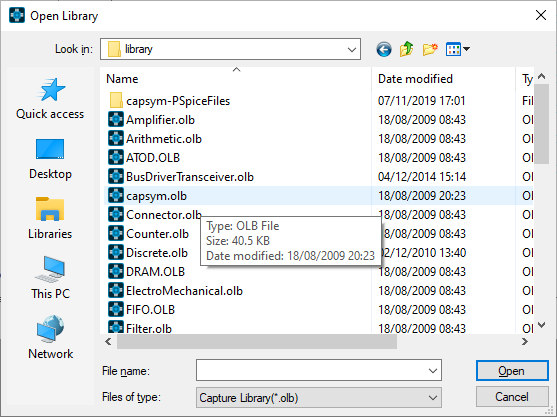
(The default libraries have been copied out of the default library location within the installation for use in the course)
3. Left-click on capsym.olb to select it and left-click>Open.
The library opens in a new tab.
(Symbols will be copied from this source library to the TRNG library just created)
4. In the CAPSYM library, use Control+left-click to select both the GND_POWER and TITLEBLOCK0 symbols.
5. Select Edit>Copy, or Control+C.
6. Left-click the other library tab to select the new library.
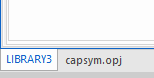
(Your “library” tab may have a different name)
7. Left-click on the TRNG.OLB entry and select Edit>Paste from the menu, or Control+V on the keyboard
The two selected symbols now appear in the TRNG library.
8. Left-click the capsym.opj tab to select the library and then File>Close from the menu.
9. In the TRNG library, left-click the GND_POWER symbol to select it and then use Design>Rename from the top menu, or right-click>Rename
The Rename Power Symbol window appears.
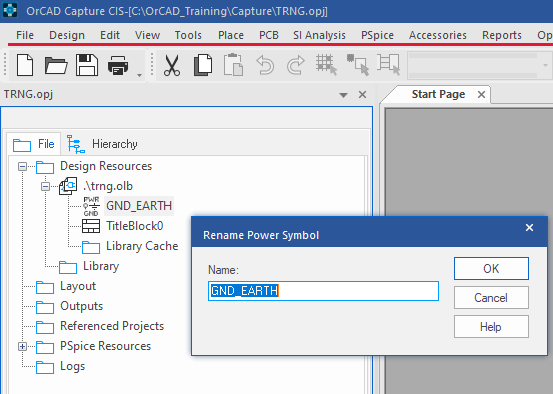
9. Change the symbol name to GND and left-click>OK to close the form.

End of Lab
All content Copyright 2022 Parallel Systems Ltd.