
All content Copyright 2022 Parallel Systems Ltd.
1. In the Capture session window, select File>New>Project.
The New Project window appears.
2. In the Name field, enter:
Lesson8
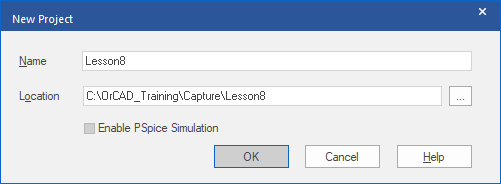
3. Use the “…” button to at the right of Location and navigate to the C:\OrCAD_Training\Capture directory.
4. Left-click the New Folder link towards the top of the Select Folder window
5. Type Lesson8 in the New Folder text and press Enter to set the name of the new folder just added.
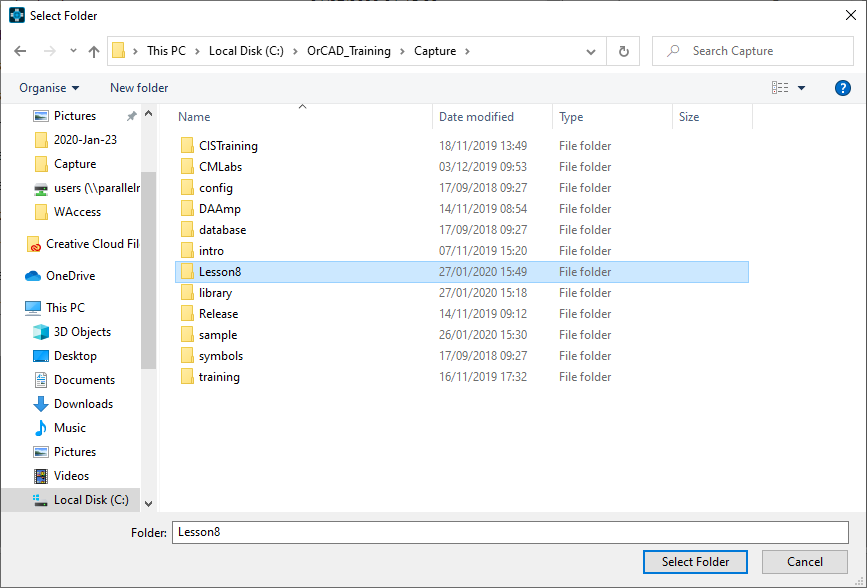
6. Left-click the Lesson8 folder name to select the folder and left-click>Select Folder at the bottom of the window to complete the selection.
7. Compare your new project settings to the following example.
Important
Make sure the Location field is correct.
8. In the New Project window, left-click>OK.
If the PC Board Wizard project type was selected, the PCB Project Wizard will appear, if prompted, leave the Enable Project Simulation box
9. Notice the project name shown at the top of the Project Manager window.
10. Left-click in the schematic page to make it active.
Observe the schematic toolbar, if displayed. The default location is along the right edge of the Capture window. Also observe the main toolbar, if displayed, and menu. The default toolbar location would be across the top of the Capture window.
11. Left-click in the Project Manager window to make it active.
Observe that the schematic toolbar, if it is displayed, is disabled (greyed), and the main menu changes.
12. Left-click in the schematic window to make it active again. Resize this window (make it larger) if necessary.
13. Left-click the Zoom to all icon.
This fits the contents of the schematic in the window. All you currently have in this design is a title block.
Observe that the data in the title block reflects the information you entered into the design template in an earlier lab.
Note
See Lab 7-2 of this manual if you need to review the steps to setup the title block.
14. Left-click the Zoom out icon.
You are ready to begin the next lab.
End of Lab
All content Copyright 2022 Parallel Systems Ltd.