
All content Copyright 2022 Parallel Systems Ltd.
1. Start the Padstack Editor:
Start (Windows Icon) >Cadence PCB Utilities 17.4>Padstack Editor 17.4
The Padstack Editor form is displayed.
2. Select File>New from the Padstack Editor main menu.
3. The New Padstack dialog opens, use the “…” button to navigate to the
C:\OrCAD_Training\PCB_Designer\play directory.
4. In the File Name field, type the name for this padstack:
c112h086ps170
5. Left-click the Change Directory box.
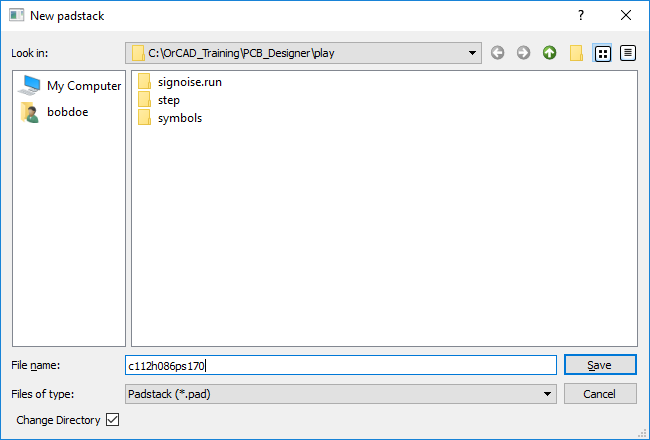
6. Select Save to define the new padstack name and set the current working directory.
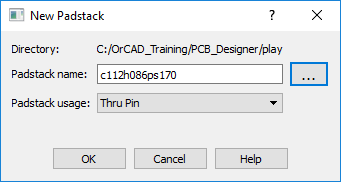
7. Check that the Padstack Usage is Thru Pin and left-click>OK to close the New Padstack dialog
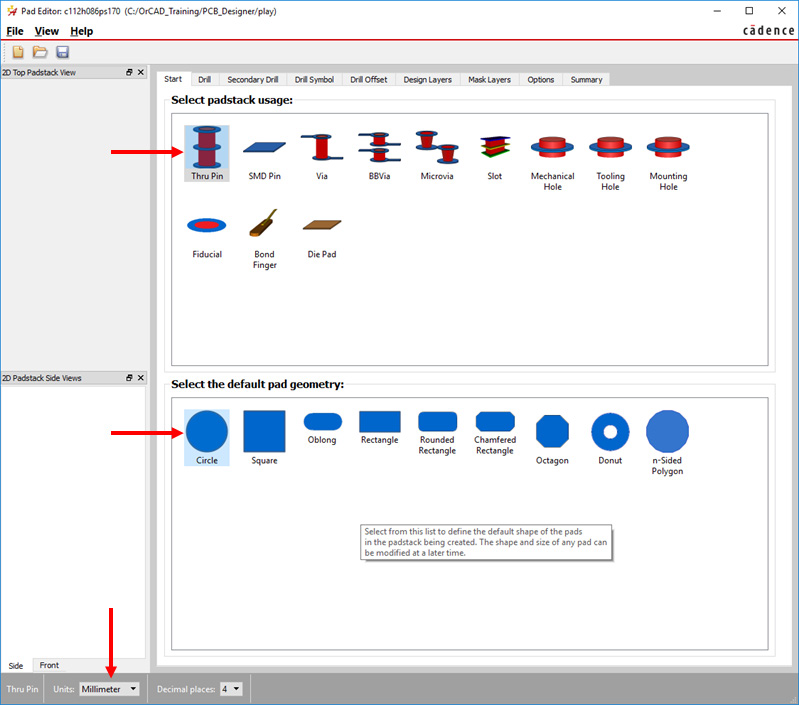
8. Change the Units drop-down to “Millimeter”, the Decimal Places will change to 4
(Yes the warning about accuracy)
9. Check that Thru Pin is set for the Padstack Usage and that Circle is set as the default pad geometry. (Left-click to select these options if not set)
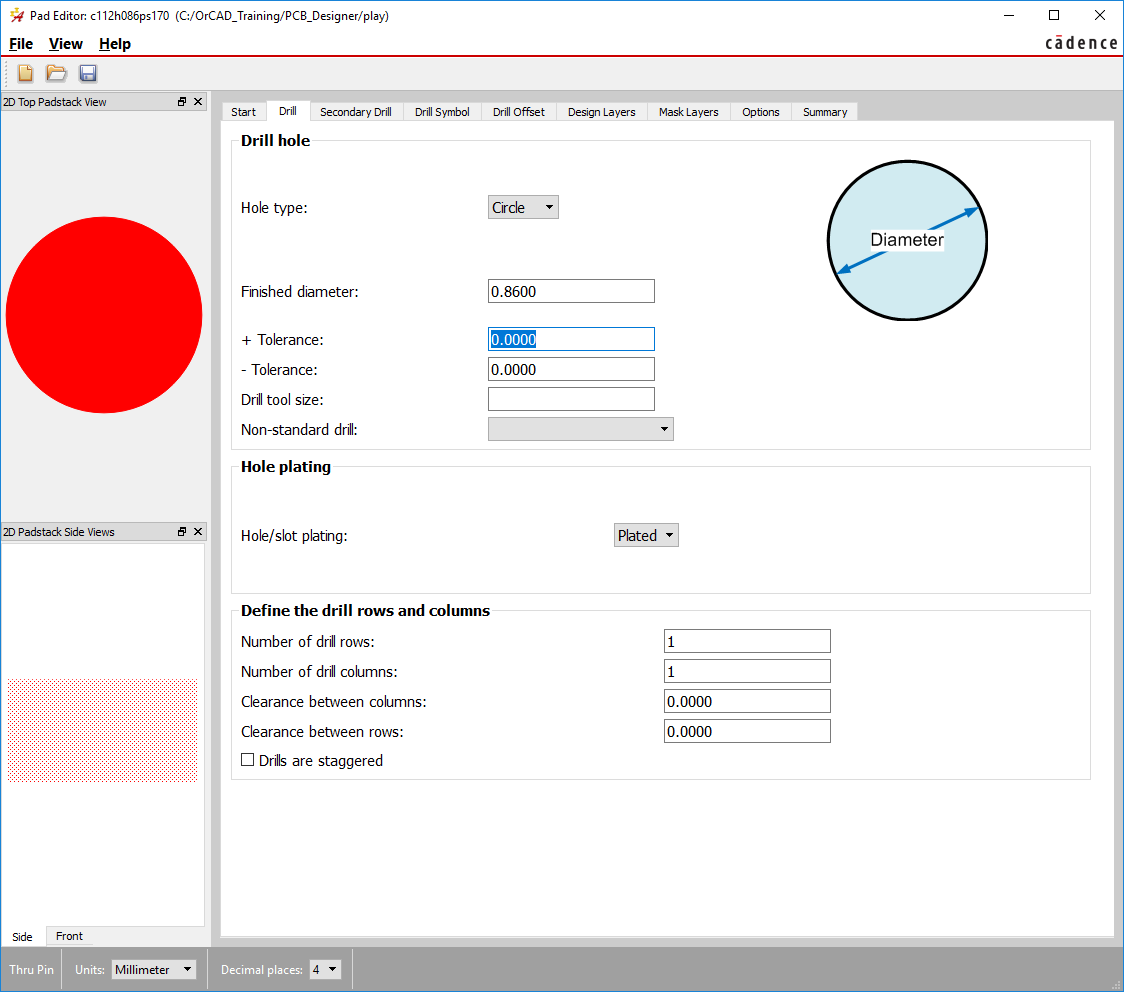
10. Left-click on the Drill tab and set the Hole Type to Circle (the default) and Finished diameter to 0.86 (mm). (Tolerances won’t be set in this case)
11. Left-click on the Drill Symbol tab and set the Type of Drill Figure to Circle, Characters to A and Drill Figure Diameter to 0.86 (mm).
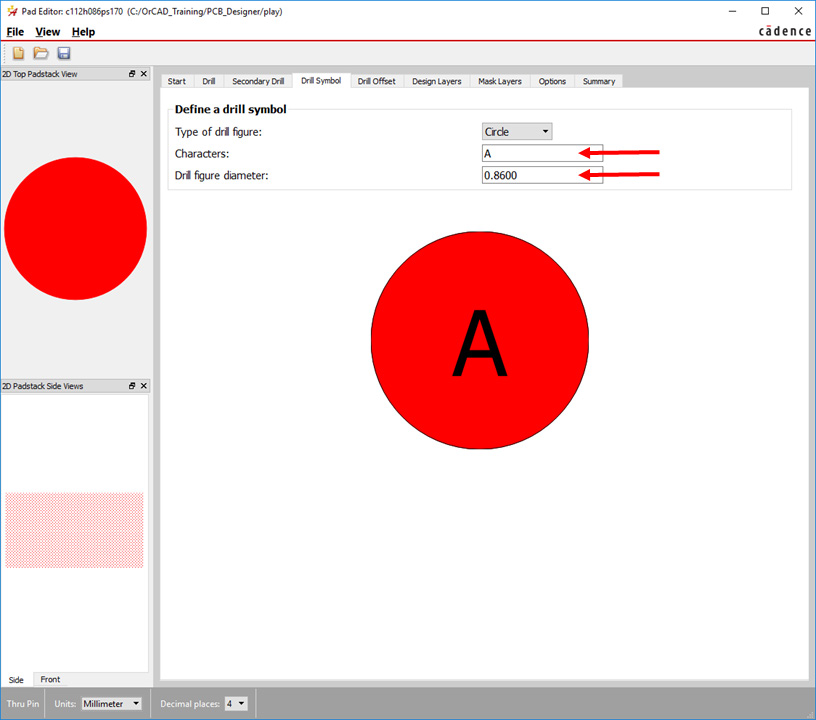
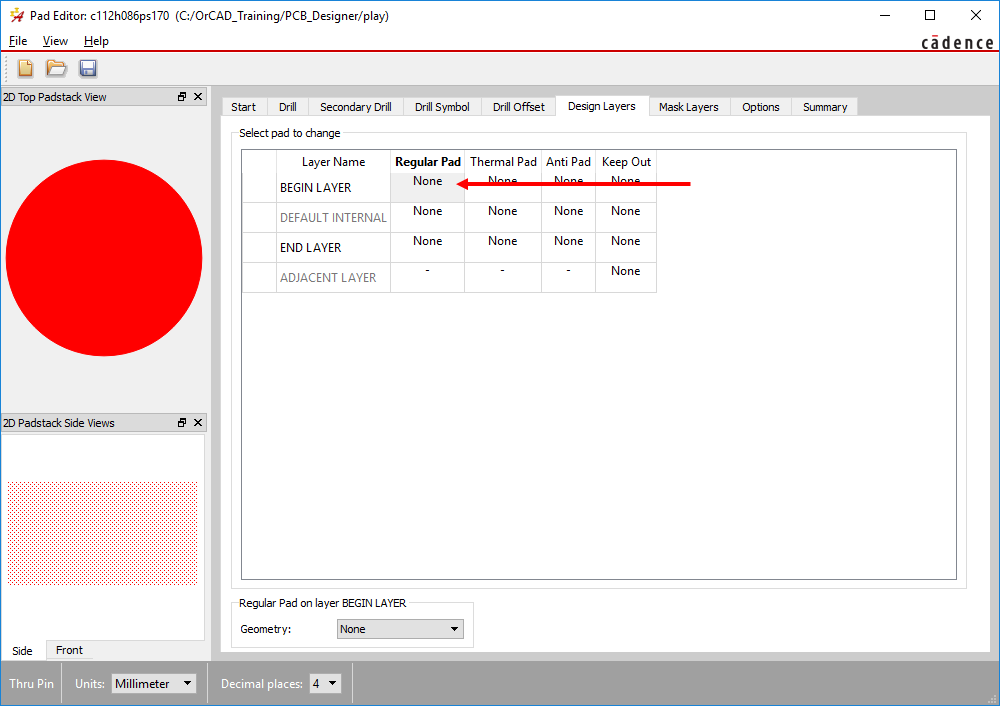
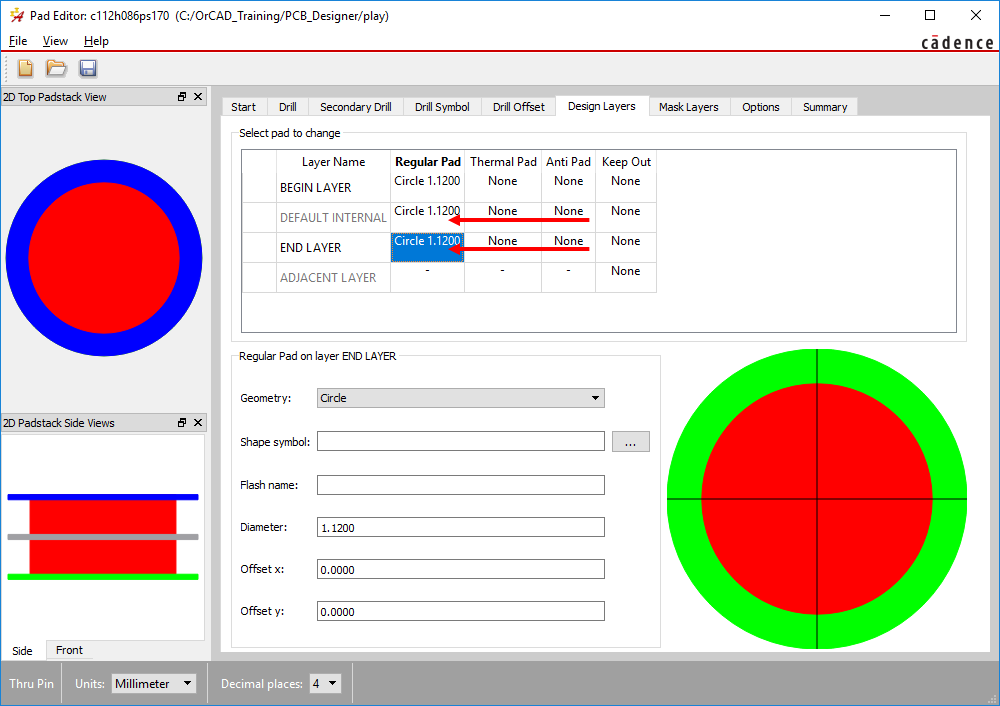
12. Left-click on the Design Layers tab and left-click in the Begin Layer / Regular Pad cell to set the Geometry to Circle (the selected one from “Start”)
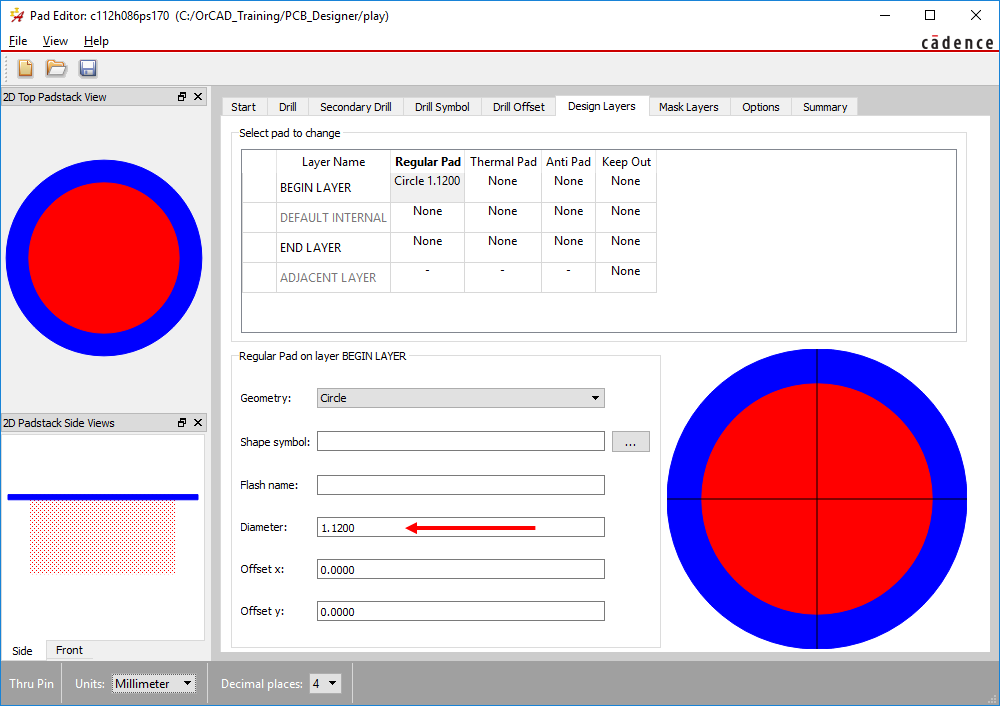
13. Left-click in the Diameter box and set the value to 1.12 (mm)
14. Right-click in the Begin Layer / Regular Pad cell and select Copy
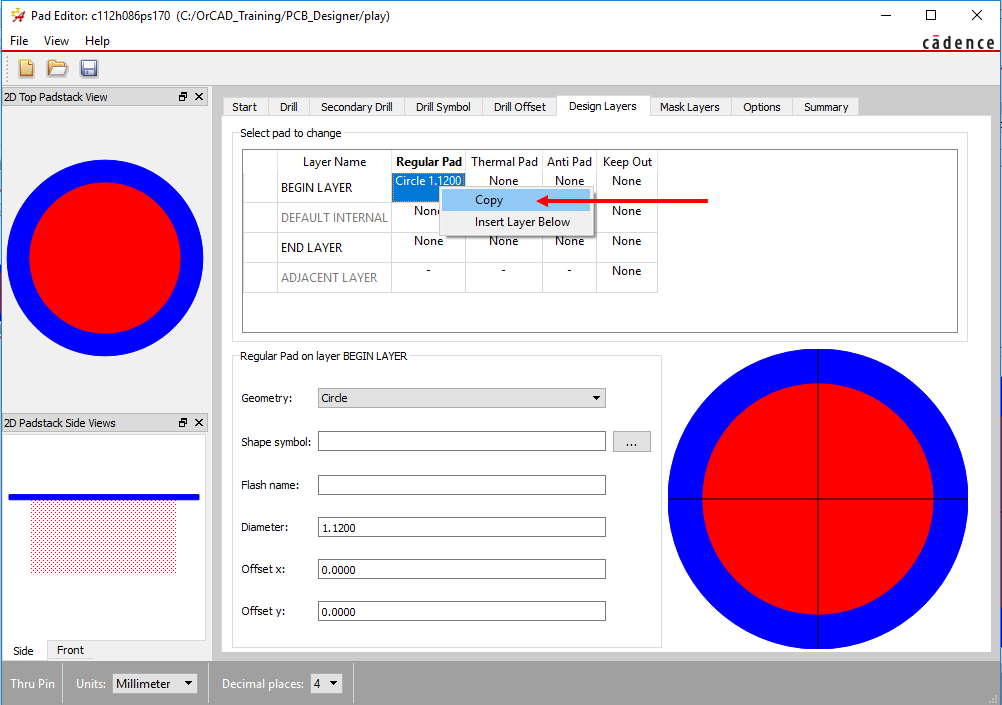
15. Right-click in the Default Internal / Regular Pad cell and select Paste. Repeat this for the End Layer / Regular Pad cell.
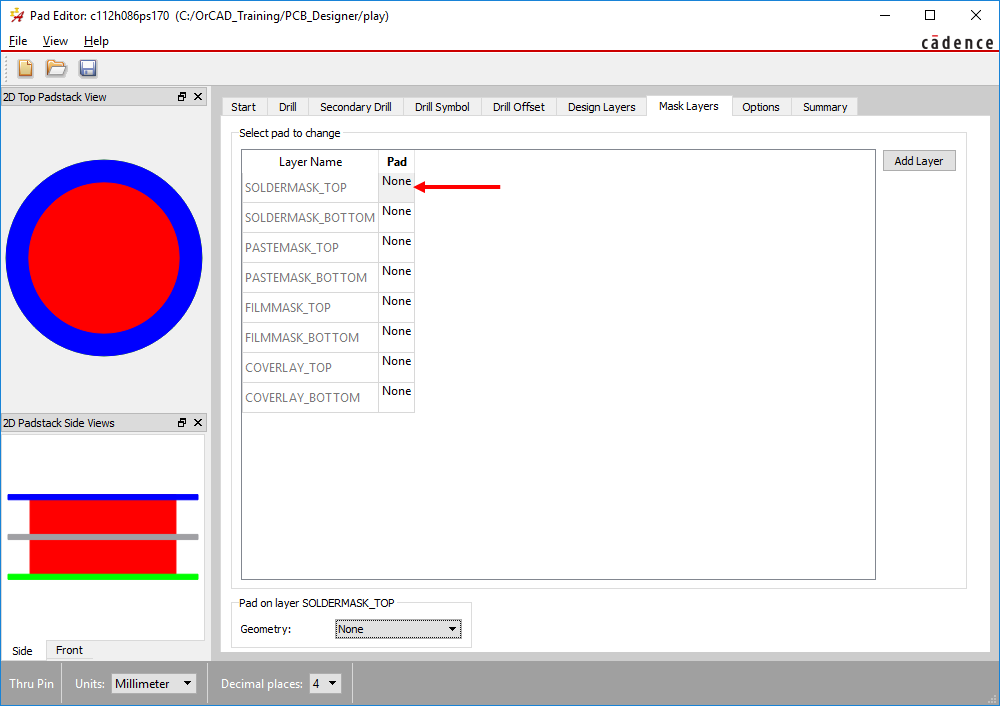
16. Left-click the Mask Layers tab.
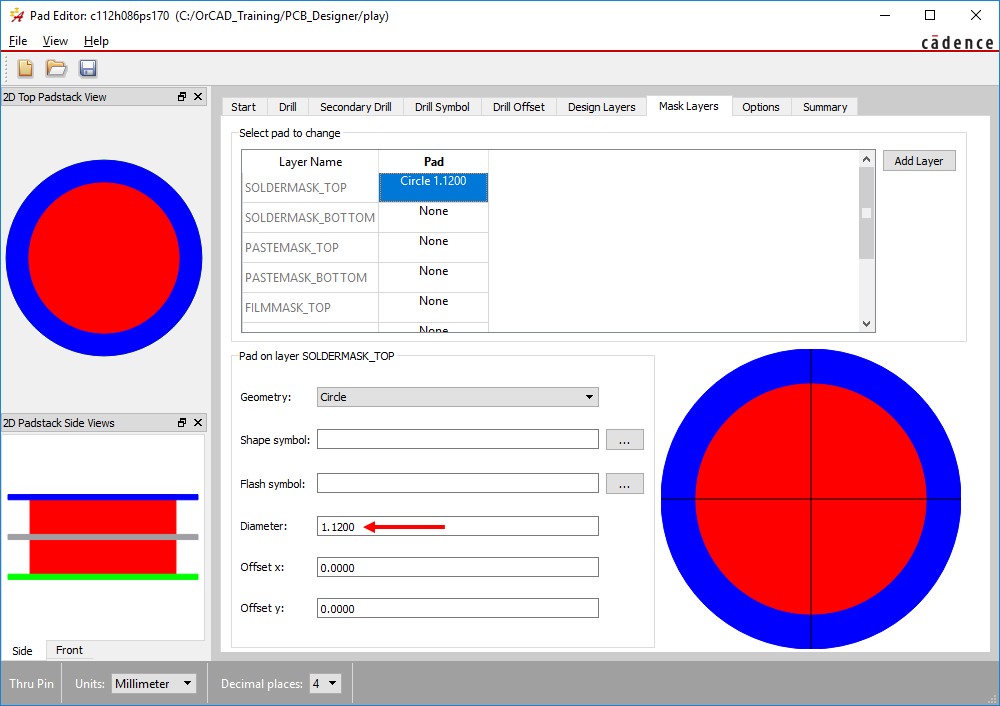
17. Left-click in the Soldermask_Top / Pad cell to select Circle.
18. Left-click in the Diameter box and set the value to 1.12 (mm).
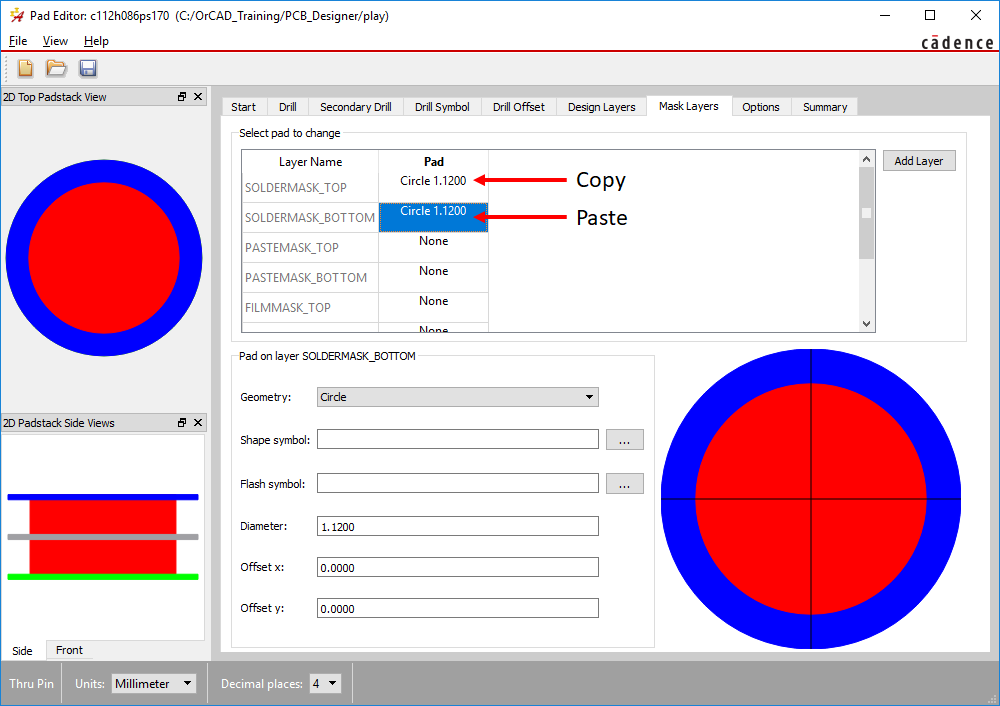
19. Right-click in the Soldermask_Top / Pad cell and select Copy, then right-click in the Soldermask_Bottom / Pad cell and select Paste.
20. Left-click in the Pastemask_Top / Pad cell, set the Geometry drop-down to Square and the Width value to 1.70 (mm)
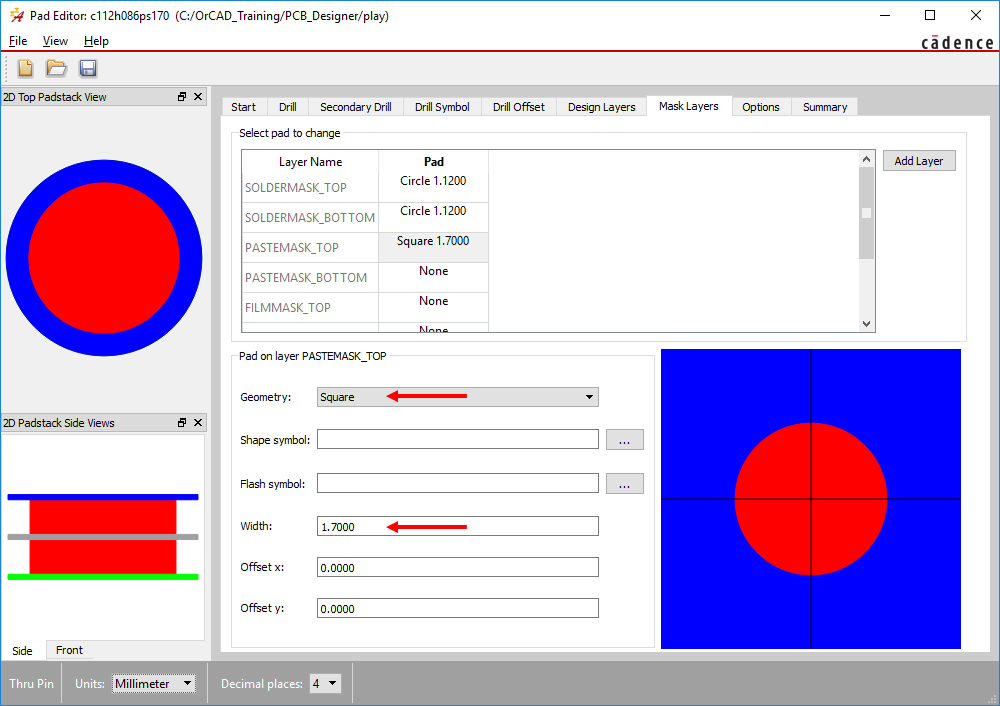
(If required, the Summary tab can be used to check the settings)
21. Use File>Save to save the Padstack.
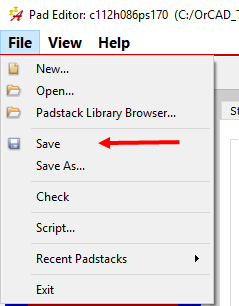
Keep the Padstack Editor open for the next Lab.
End of Lab
All content Copyright 2022 Parallel Systems Ltd.