
All content Copyright 2020 Parallel Systems Ltd.
Start Padstack Editor from:
Start (Windows Icon) >Cadence PCB Utilities 17.4-2019>Padstack Editor 17.4
The Pad Designer Canvas opens.
1. Select File>Open from the Padstack Editor main menu.
2. If necessary, set the Files Type for pads (*.pad)
3. Use the Browse button to navigate to the C:\OrCAD_Training\PCB_Designer_Advanced directory, select the s150h100.pad file and left-click on Open.
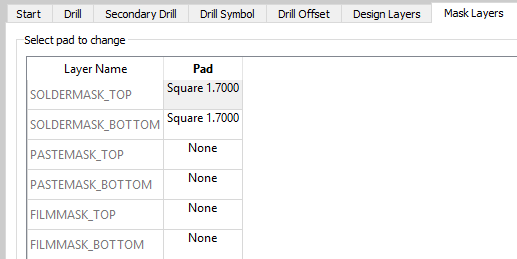
Review the pre-defined layers under the Design Layers and Mask Layers tabs
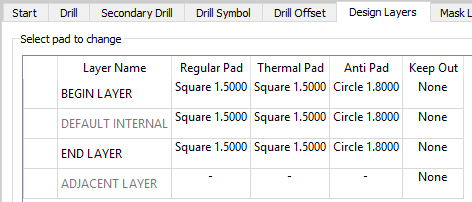
4. Select the Secondary Drill tab, enable Backdrill and enter the following values:
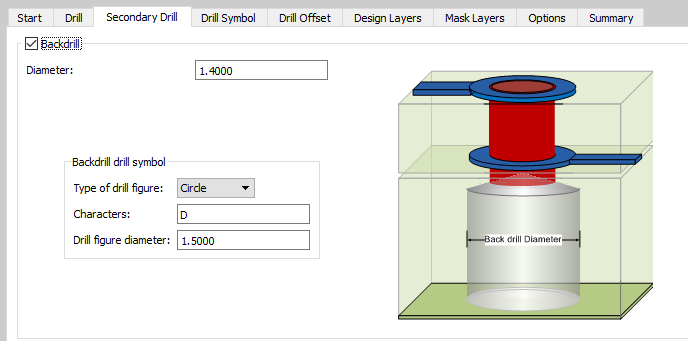
NOTE: Once Backdrill has been enabled under the Secondary Drill tab, new layers will be made available under the Design Layers and Mask Layers tabs to support Backdrilling.
5. Select the Design Layers tab and enter the following values:
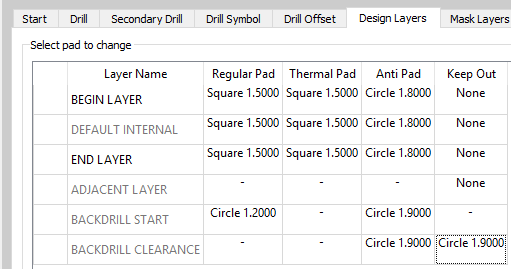
NOTE: You can use CTRL+C and CTRL+P to copy information from one cell to another and also drag across multiple cells when pasting. Copy and Paste is also available via the right click as well.
6. Select the Mask Layers tab and the following values:
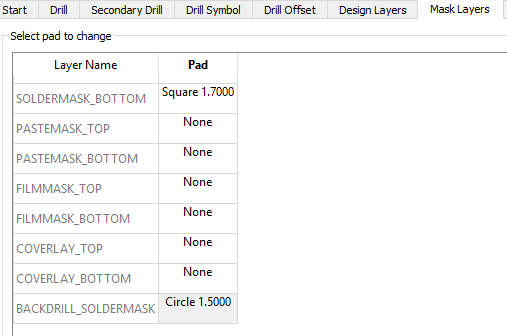
7. Select the Summary Tab and scroll down to the bottom of the report to review your Backdrill data updates.
8. Save this Padstack using File>Save to save the library padstack.
9. Open file c150h100.pad located in the C:\OrCAD_Training\PCB_Designer_Advanced folder and repeat steps 4 through 8 above then close Padstack Editor.

End of Lab
All content Copyright 2020 Parallel Systems Ltd.