
All content Copyright 2022 Parallel Systems Ltd.
Start PCB Editor from:
Start (Windows Icon) >Cadence PCB 17.4-2019>PCB Editor 17.4
The PCB Editor Canvas opens.
1. Select File>Open from the PCB Editor main menu.
2. If necessary, set the File Type for Board (*.brd)
3. Use the Browse button to navigate to the C:\OrCAD_Training\PCB_Designer_Advanced directory, select the vision.brd file and left-click on Open
4. Use Analyze>Workflow Manager to open the Workflow Manager.
5. Check that Impedance Workflow is selected from the drop-down.
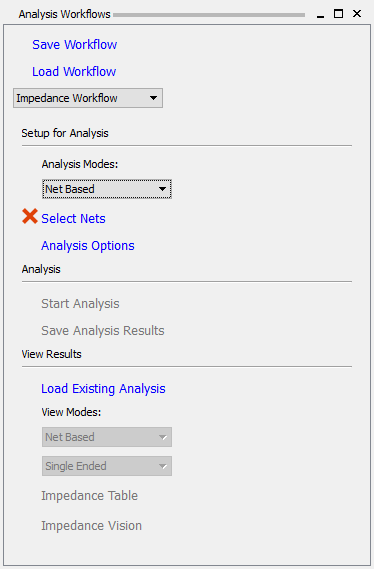
The red “X” next to “Select Nets” indicates that Nets need to be selected.
6. Left-click>Select Nets
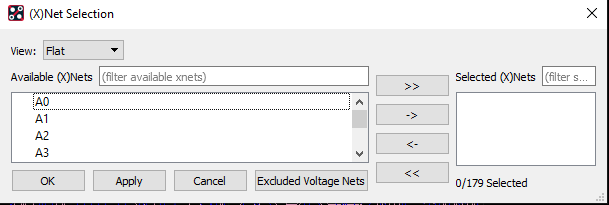
7. Left-click the “>>” button to select all of the Nets. (This will be fine for this design, it might be wise to be more selective with the Nets on a much larger design)
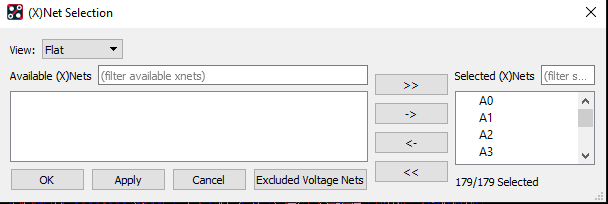
8. Left-click>OK. There will be a green “tick” next to Select Nets now that some Nets have been selected.
9. Left-click>Start Analysis and wait for the processing to complete.
10. Left-click>Impedance Vision to see the impedance colouring overlaid on the canvas.
Note that any through Vias create “discontinuities” in the Impedance since the reference planes have been removed in that area.
11. Hover the mouse over any of the traces to see a datatip describing the results of the impedance analysis.
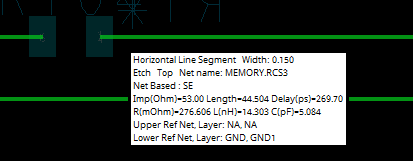
If time permits investigate why there is a change in impedance on some of the nets (turning on the GND planes will help). You can also use the Impedance Table to display min and max impedance values per net which will help locate any issues. By double clicking an net issue in the detailed table will zoom and centre the screen on the actual issue. Look at net LED4 for example).
12. Left-click>Impedance Vision to remove the Impedance Vision from the canvas and left-click the “X” to close the Impedance table, then the “X” to close Workflow Manager.
When you close the board file you will be asked if you want to save the Analysis Data, for the purpose of the course, do not save this data or the board, we will use the same design in the next lab.

End of Lab
All content Copyright 2022 Parallel Systems Ltd.