
All content Copyright 2022 Parallel Systems Ltd.
Start PCB Editor from:
Start (Windows Icon) >Cadence PCB 17.4-2019>PCB Editor 17.4
The PCB Editor Canvas opens.
1. Select File>Open from the PCB Editor main menu.
2. If necessary, set the File Type for Board (*.brd)
3. Use the Browse button to navigate to the C:\OrCAD_Training\PCB_Designer_Advanced directory, select the contour.brd file and left-click on Open
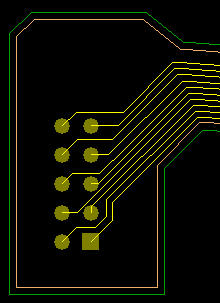
This design opens in the lower right corner of the PCB. Pan around to get an overview of the design. There are three 90 degree corners and an off-angle section.
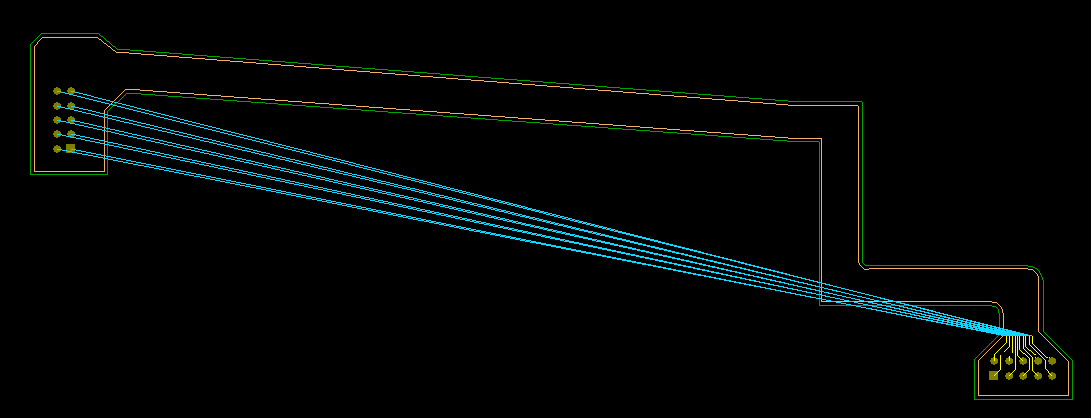
4. Zoom into the lower right corner of the board.
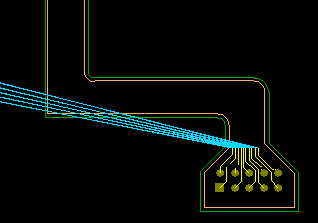
5. Start Add Connect, Route>Connect from the menu or Add Connect icon or F3 on the keyboard
For this exercise, the requirement is that, during the routing, the routing follows the route keepin edge on the left hand side, therefore, it is necessary that the leftmost track is the control trace.
6. Left-click and drag a window around the rats from lower right to upper left, this will set the controlling trace to the leftmost rat.
(If you need to change the control trace, right-click>Change Control Trace)
The Group Routing feature will keep the nets together.
7. Right-click>Contour Options to see the possible settings for the Contour command. Since we don’t need to set anything here click OK then right-click again and choose Contour Mode then select the Route Keepin area to the left of the control trace.
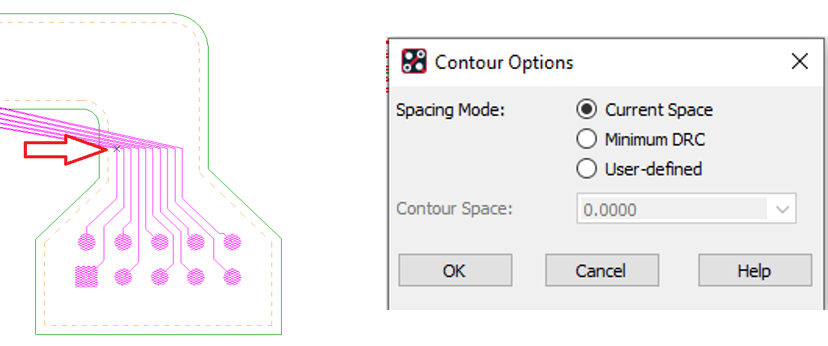
8. The Route Keepin area will highlight and the clines will start to follow the outline on the left. Hold the middle mouse button down, or use the arrow keys to pan, keep the cursor to the bottom of the route keepin to follow it.
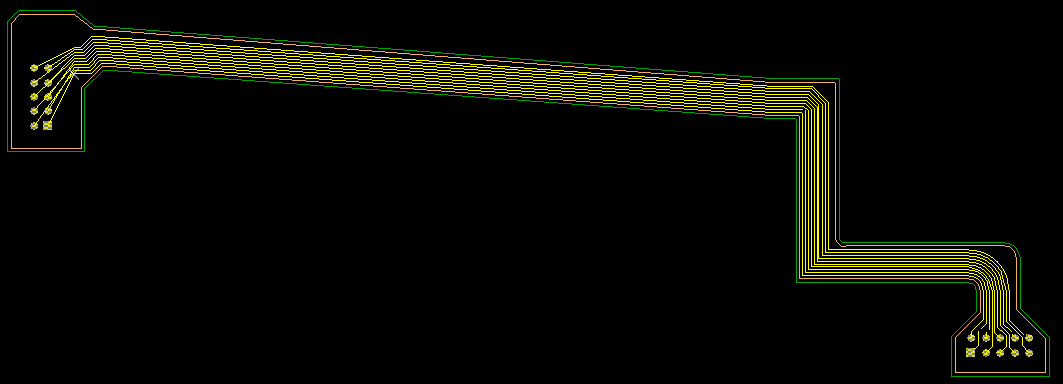
9. Left-click when at the left-hand end of the routing to accept the routed sections, intermediate left-clicks are not required to add the traces.
Note that left-click stops the routing from following the route keepin, but the command will remain in contour mode (awaiting another selection) until you right-click and choose Contour mode.
10. Right-click>Single Trace Mode to remove the traces from the group and pick an individual trace to complete the routing.

End of Lab
All content Copyright 2022 Parallel Systems Ltd.