
All content Copyright 2022 Parallel Systems Ltd.
Start PCB Editor from:
Start (Windows Icon) >Cadence PCB 17.4-2019>PCB Editor 17.4
The PCB Editor Canvas opens.
1. Select File>Open from the PCB Editor main menu.
2. If necessary, set the File Type for Board (*.brd)
3. Use the Browse button to navigate to the C:\OrCAD_Training\PCB_Designer_Advanced directory, select the schedule_save.brd file and left-click on Open
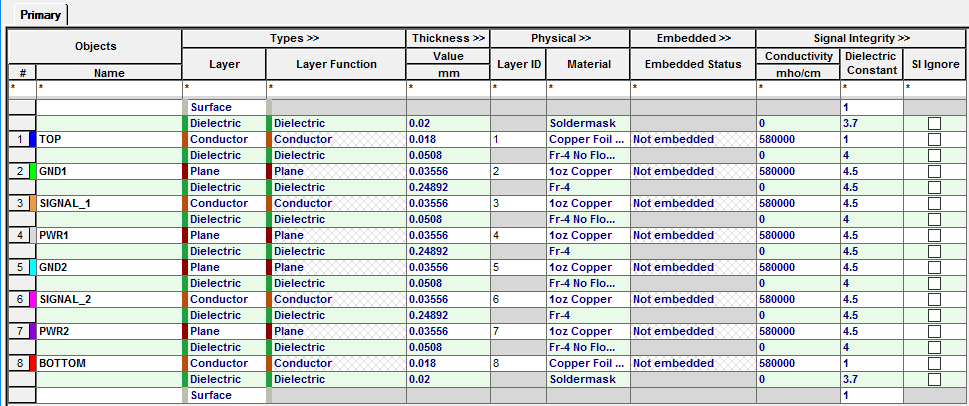
4. Check that the Stackup is correctly configured, this is key for the impedance values to be accurate. Setup>Cross-Section and verify the settings match these:
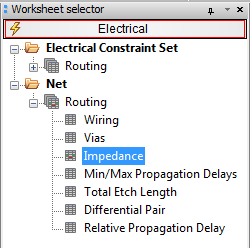
5. Start Constraint Manager and go to Electrical / Net / Routing / Impedance
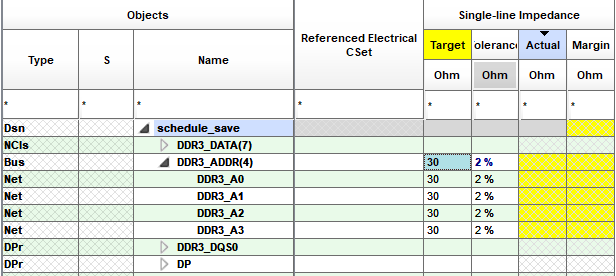
6. Set the Target Impedance to 30 Ohm for the Address Bus nets, leave the Tolerance at the default 2%
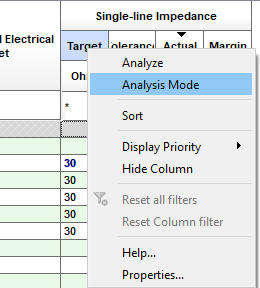
7. The Yellow background for the Target header indicates that the Analysis Mode for Impedance is not currently enabled. A fast and easy way to activate the constraints is to right click on the field name Target and select Analysis Mode.
8. Close the Constraint Manager Window and return to the PCB Editor Window.
9. Route each of the four address lines, purple rats, using Add Connect, use Route >Connect check Options, see that the route width is 0.127mm until the net is picked, when it will change to 0.2093mm for Top, to match the width calculated to get the 30 Ohm impedance constraint. Route on the Signal_1 and Signal_2 layers, the Width will change to 0.146mm for the Signal_1 layer. You may need to Add Connect on the Via, rather than the Pin to route on the required layer.
10. When finished, run a DRC check, Check>DRC Update
11. Open Constraint Manager and go to Electrical>Net>Routing>Wiring and right-click>analyze on the DDR3_ADDR bus name to verify that Actual = PASS for all four signals.
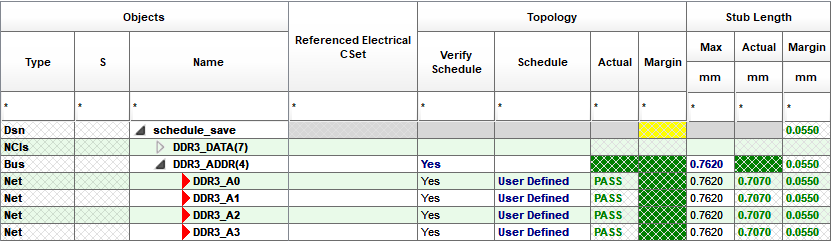
12. You can also confirm the impedance from the Electrical>Net>Routing>Impedance worksheet, again right-click>Analyze on the DDR3_ADDR bus name.
13. Close the Constraint Manager window and Save the board file As schedule_imp.brd

End of Lab
All content Copyright 2022 Parallel Systems Ltd.