Entering the Schematic using a local CIS Database
Note that some level of administrative control over the machine will be required to configure the local CIS database.
Also note that a default installation of the products is assumed for this tutorial. If libraries have already been configured, the settings will need to be saved for the tutorial and restored after completing this tutorial.
Configure the Data Source for the local CIS database
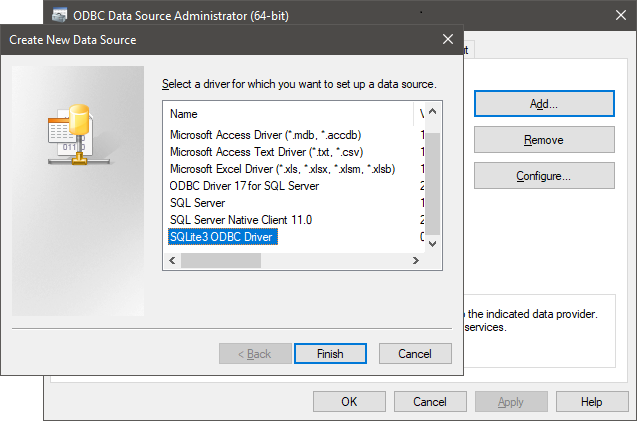
In Windows, get to the Control Panel, Administrative Tools, ODBC Data Sources (64-bit), or use the Windows Search, type ODBC and select ODBC Data Sources (64-bit). In the ODBC Data Source Administrator (64-bit) select the System DSN tab and left-click>Add. Select the SQLite3 ODBC Driver and left-click>Finish.
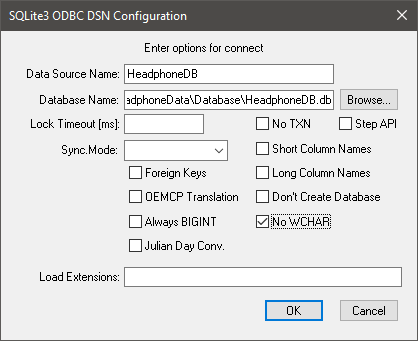
To use the provided DBC file, set the Data Source Name to HeadphoneDB, use the Browse button for Database Name to select the saved HeadphoneDB.db file in the downloaded data, left-click>No WCHAR and left-click>OK.
Configure Capture CIS to use the local Database
Start Capture CIS 24.1 from the Cadence OrCAD X and Allegro X 24.1 Windows Start Menu group using a license that will enable the CIS functionality. Open “any” Capture DSN file to enable all the Options menu. Use Options>CIS Configuration and then use Browse to select the saved HeadphoneDB.DBC file from the downloaded data.
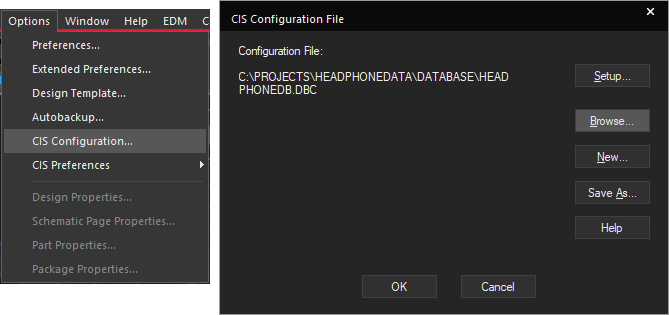
(If the ODBC data source was given a different name from the default, use New to select that ODBC Data Source and use the wizard to build the DBC file)
Starting the Project
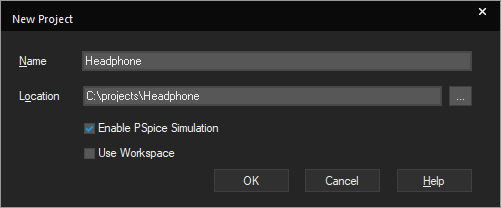
Begin by starting OrCAD Capture CIS 24.1 using a license that enables the CIS functionality. If prompted, log into Cadence using your Cadence Support credentials, or OK the license message if you don’t have any cloud access enabled. Then, in the opened Capture application, use File>New Project to start a New Project, name the project Headphone, for example. Check the Enable PSpice Simulation if the design is to be simulated with PSpice, leave this unchecked if there isn’t a PSpice license available. Specify a folder for the project location. The Use Workspace is optional but will fix the project folder.
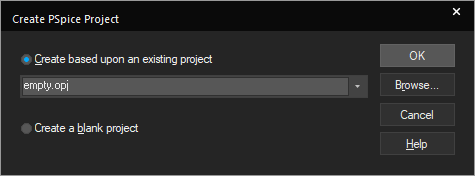
If Enable PSpice Simulation was checked, base the new project on the empty.opj existing project when prompted for a project template. If prompted, confirm the PSpice license to be used for this session.
Adding the Library for the CIS database
Start by adding the Libraries. Left-click on the "+" for "headphone.dsn" and then the "+" for "SCHEMATIC1", double-click on the Page1 entry to open the Schematic Page.
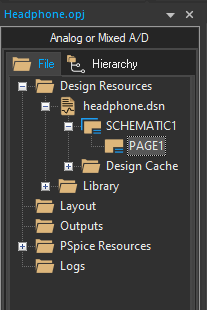
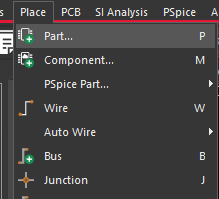
Left-click in the Schematic Page to activate it and then use Place>Part from the menu.
In the Place Part form at the right, left-click the Add Library icon to open a browser for the required libraries.
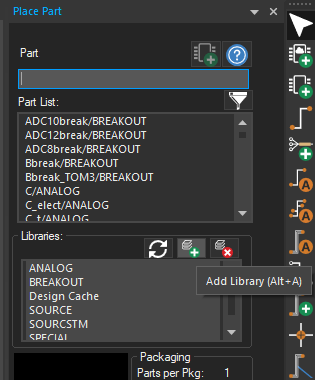
When the file browser opens, navigate to the saved HeadphoneAmp.olb file from the downloaded data, select it and left-click>Open to add the library.
Placing the parts
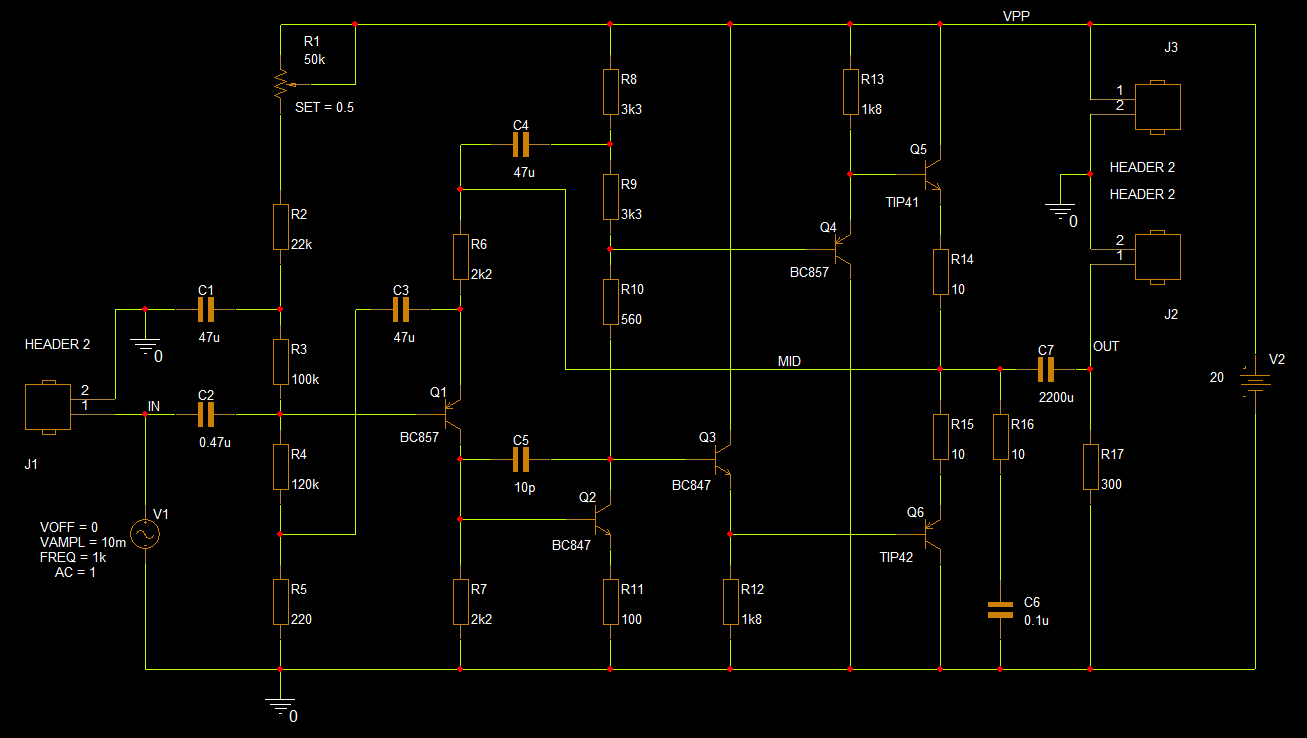
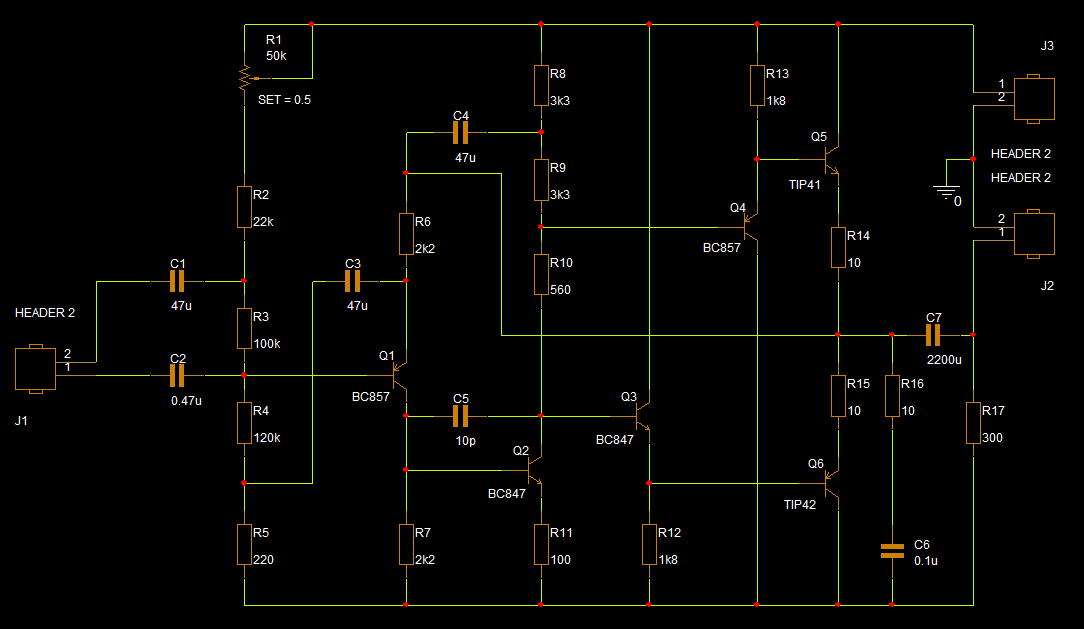
Use the completed schematic above for reference as you enter the schematic. The exact layout of the schematic is not critical to having a working example but correctly connecting the various elements will be required to get the circuit to work as expected. Once the libraries have been added, use Place>Component
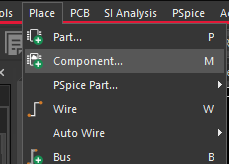
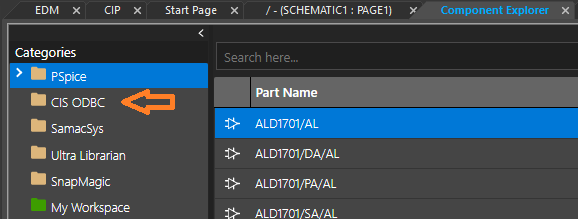
In the Component Explorer, left-click on CIS ODBC to open the CIS Explorer.
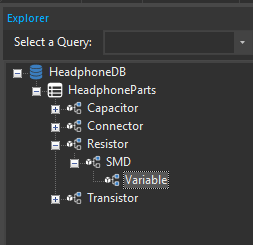
Left-click the “+” to the left of HeadphoneDB (or what the ODBC Data Source was named), left-click the “+” to the left of HeadphoneParts, left-click the “+” to the left of Resistor, left-click the “+” to the left of SMD and left-click on Variable.
Left-click on the entry in the lower pane for the 10-910-001 Part Number entry. The background colour for the row will change to green. A graphic for the Schematic Part will be shown at the upper right, to see the graphic for the PCB Footprint, follow the steps in this note to add the PCB Footprint files to Capture.

Left-click on the Schematic1: Page 1 tab at the top to activate the Schematic Page, then left-click on the CIS Explorer – Place Database Part tab at the top. Right-click on the green row and take Place Database Part, or double-click on the green row, the Schematic Page activates with the “POT” attached to the cursor.
Use right-click>Rotate, or press the R key on the keyboard, to rotate the POT so that the "Resistor section" is vertical with the wiper pin to the right, or left, of that, then left-click the mouse to place the POT part towards the upper left of the page, right-click>End Mode, or use the Esc key, to end placing.
Note that which "end" of the POT that the wiper is connected to will not be critical, PSpice will be used to simulate the circuit bias to evaluate the required set point for the POT.
If required, left-click on the SET=0.5 text and drag the mouse to move this text away from the POT pin so that any added wires do not obscure the text.
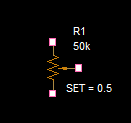
Use File>Save from the menu to save the current schematic.
Return to the CIS Explorer – Place Database Part tab. Since the database has content restricted to this project, use the Query, rather than Explore, tab at the top left, use the drop-downs and set Property to Value, Compare to Equals (=) and Value to 22k and press Enter.
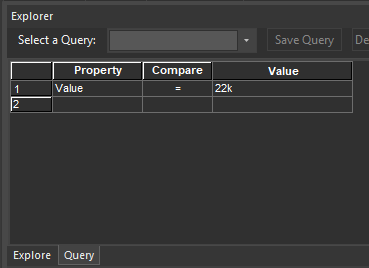
Select the part in the row and either right-click>Place Database Part or double-click the row to activate the Schematic Page. Use a left-click to place the part. Press Esc to end placement and, if required, rotate the resistor and drop onto the lower Pin of the POT previously placed. (Rearrange any Text as required)
Repeat these steps for 100k, 120k and 220 Resistors to complete the input bias chain, drop the resistor pins together. Once the resistors are placed, drag the resistors apart to get wires added.
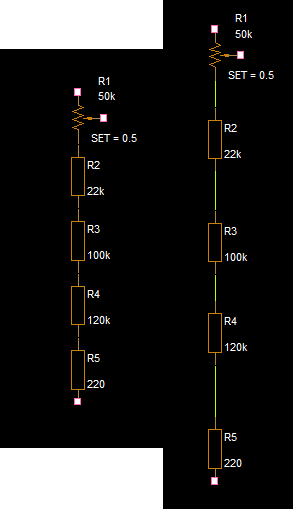
Use File>Save from the menu to save the current schematic.
Don't be too concerned about the exact placement of the components at this stage, their positions can be changed as the circuit is completed.
Next place the three capacitors, C1, 47u, C2 0.47u and C3, 47u. For the 47u capacitors, use the 10-120-020 Part Number. (Note that, as far as PSpice is concerned, capacitors are not polarised, regardless of value. Although the actual circuit components probably will be polarised for the larger values)
Once the Capacitors are placed, use Place>Wire from the menu, or the W key, to enter wiring mode and make the initial connections, as shown, left-click on a Pin to start the wire, move the mouse to draw the wire, left-click to add any corners to the wire and left-click on the destination pin to complete the connection(s), right-click>End Mode, or use the Esc key, to end wiring mode. (Note that the right-hand half of the image has the wires attached to the capacitors.)
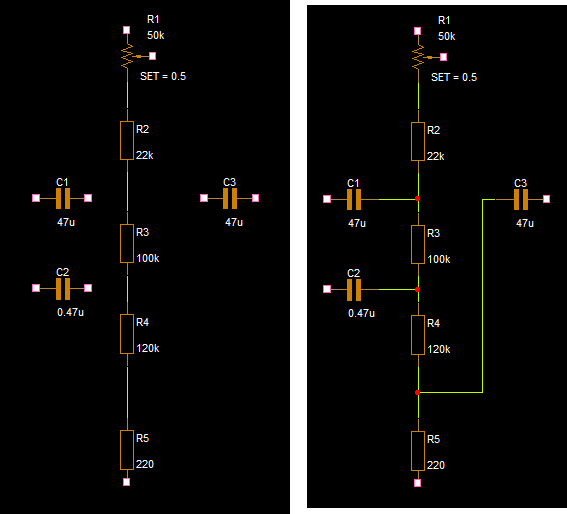
Use File>Save from the menu to save the current schematic.
Now continue to place and wire the next stage of the schematic. When placing the BC857 PNP transistor, use right-click>>Mirror Vertically while the part is on the cursor to get the emitter at the top of the part. The BC847 and BC857 are used for the small signal transistors.
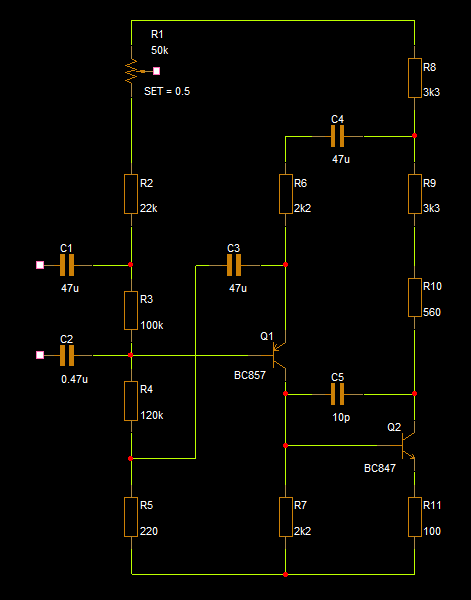
Now continue with the schematic, working towards the right, use the "Mirror Vertically" option when placing the PNP transistors to get the Emitter towards the "top", or "bottom", as required. Also add the connection for the wiper of the POT component and the TIP41 and TIP42 transistors and associated resistors passive components. Use the 90-100-020 Part Number for the three connectors.
Use File>Save from the menu to save the current schematic.
So far, all the wires have default, system assigned, names, these will be formatted as "N" followed by an identifying number. Whilst these names will work perfectly as far as the design is concerned, it will be much easier to identify key net names if the default net names are overridden with Net Aliases. From the menu, Place>Net Alias, or press the N key, this form will open:
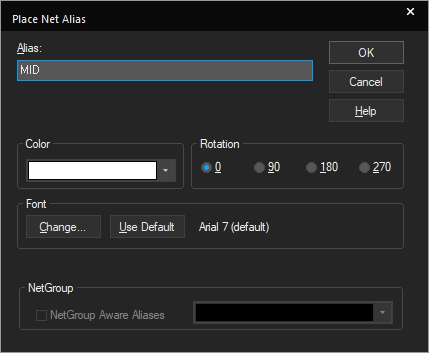
Then type in the required Net Alias name to assign in the Alias field, the value needs to be MID in this case and left-click>OK. The Net Alias value will be attached to the cursor and can be applied to a net by clicking on the net to "stick" the Net Alias to it.
(Some things to note about placing Net Aliases: IF the Net Alias ends in a number, the number will be automatically incremented, so a value of A0 will become A1 and so on, it is not possible to disable this; The Net Alias value will remain on the cursor so that it can be assigned to other wires, note that nets of the same name on the same schematic page will automatically be connected by the netlister so don't "accidentally" apply the same Net Alias to nets that you do not intend to have connected.)
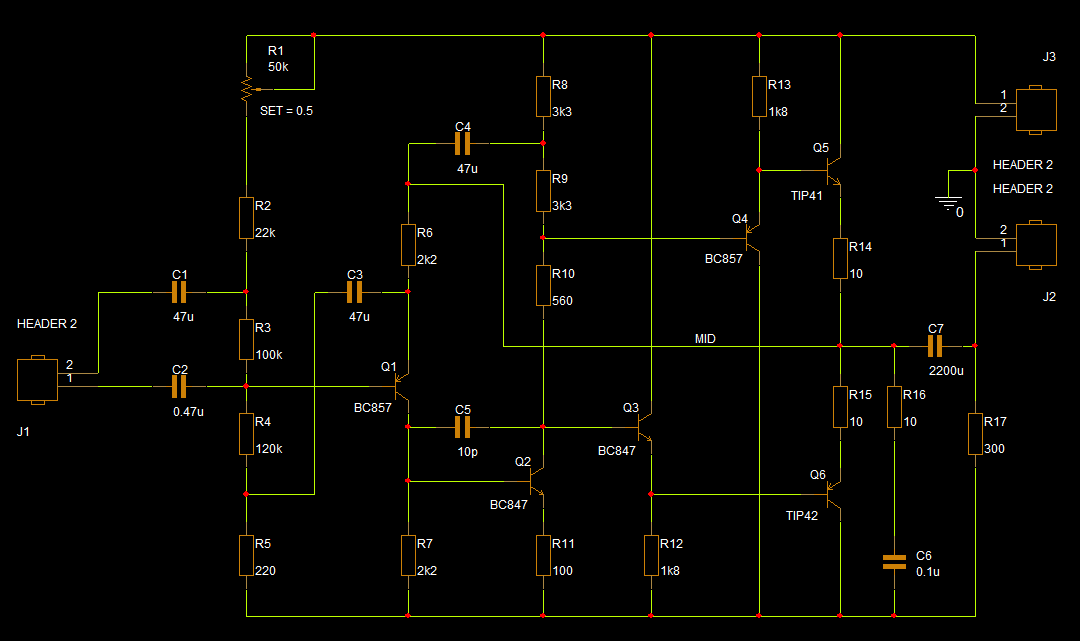
If not simulating the circuit, either move to the Physical Layout with OrCAD X Presto section. Or move on to the Physical Layout with OrCAD X PCB Editor section.
If simulating the circuit, complete the schematic as shown below. Use Place>Component and, in the Component Explorer, left-click on PSpice, use the Search at the top and type VSIN in the Search box, double-click the VSIN result and place the VSIN part in the Schematic as V1. Double-click the placed part and set the properties: VOFF to 0, VAMPL to 10m, FREQ to 1k and AC to 1; for information: this will provide a 10mV sine source at 1kHz for Transient Simulations and a 1V source for AC Sweep simulations, which are covered later. Go back to Place>Component and the PSpice parts, search for VDC and place a VDC part in the Schematic, referenced V2, for the power supply, double-click the displayed value and change 0Vdc to 20 for this circuit, PSpice will "know" that the value is a DC voltage, so it is not necessary to specify V, or Vdc, with the value. Use Place>Ground from the menu to place the 0 symbol required for the PSpice reference, this is from the Capsym library. Then use Place>Net Alias again to assign the IN, OUT and VPP Nets Aliases to the wires as shown. When placing the Net Aliases, control+E can be used to change the name on the cursor, rather than using the Place>Net Alias menu / icon three times.
Add the library for the simulation models to the configuration.
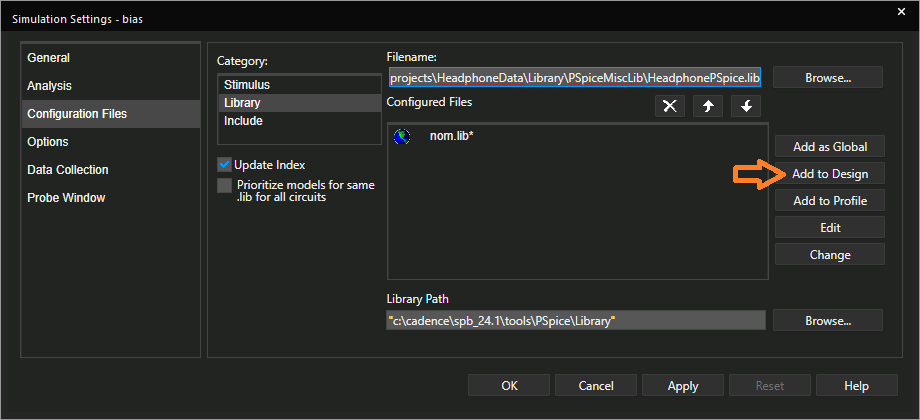
PSpice>Edit Simulation Profile, left-click>Configuration Files at the left and then left-click>Library. Left-click the upper Browse button and browse to the Library\PspiceMiscLib folder in the downloaded data and select the HeadphonePSpice.lib file. Double-click, or left-click>Open, to return to the PSpice Simulation Settings pane, left-click>Add to Design and left-click>OK.
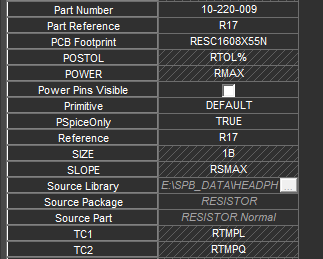
The 300 Ohm load resistor, R17, needs to be ignored by the netlist. This part has only been added to aid in the PSpice simulation and is not required for the actual design, the load will be the "headphones". Double-click the R17 part in the schematic page, then left-click on New Property and add a new property Name of PSpiceOnly with a Value of TRUE. Left-click>OK to add the property and accept any other messages.
Use File>Save from the menu to save the current schematic.
Now that the schematic has been completed, move on to the next section to look at simulating the design. Note that the schematic must be completed before moving onto the next section
Simulating the Headphone design with PSpice
You will need to complete one of the Entering the Schematic sections: Entering the Schematic using a local CIS database, Entering the Schematic using online component sources with the PSpice models assigned, or Entering the Schematic using generic libraries, before you will be able to work through this section. Screen shots used in the section are taken from the local CIS Database version of the schematic.
The sequence to run the simulations involves setting the Simulation Profile for the required simulation type and then running the simulation. The Simulation Profile can either be edited for each simulation, or a New Simulation Profile can be created, as required. The small advantage to having multiple Simulation Profiles is that it will then be possible to switch between the simulation settings without editing the Simulation Profile.
There are four basic simulation types for PSpice: Bias Point, DC Sweep, AC Sweep and Transient. The Bias Point simulation applies any DC sources and allows the circuit to get to a stable state. The other simulation types will start by running the Bias Point simulation, to get the circuit to a stable state, and then run the selected simulation type. A DC Sweep will apply multiple values to a Voltage, or Current, source, a Model Parameter, a Global Parameter, or Temperature. An AC Sweep will apply multiple values to any AC sources within the design, typically used to evaluate the frequency response of the circuit. A Transient Analysis will evaluate a circuit in real time such that it will then be possible to view the waveforms within the circuit, like using a bench oscilloscope.
Bias Point Simulation
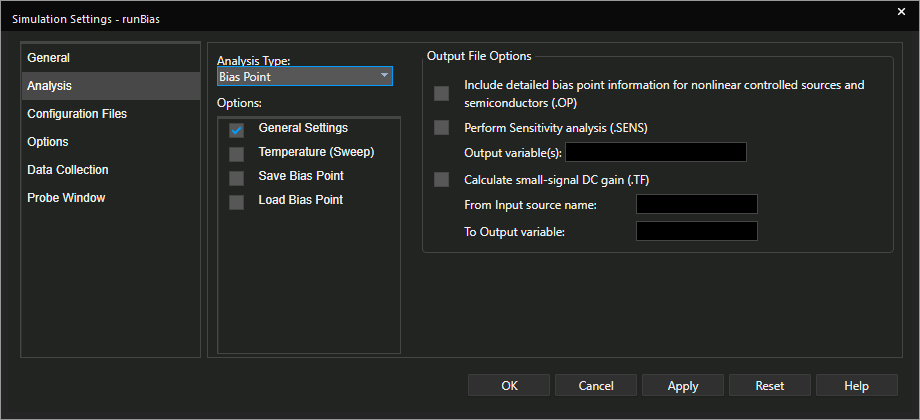
In this section, a Bias Point Simulation will be configured and run, from the menu either take PSpice>Edit Simulation Profile to edit the existing simulation profile; or take PSpice>New Simulation Profile to create a new simulation, this will need a name, like "runBias" for example.
Set the Analysis type to Bias Point, if required, the other default settings for the Bias Point will be fine for this simulation. Note that the name of the Simulation Profile, "runBias" in this case, is shown in the heading for the Simulation Settings form.
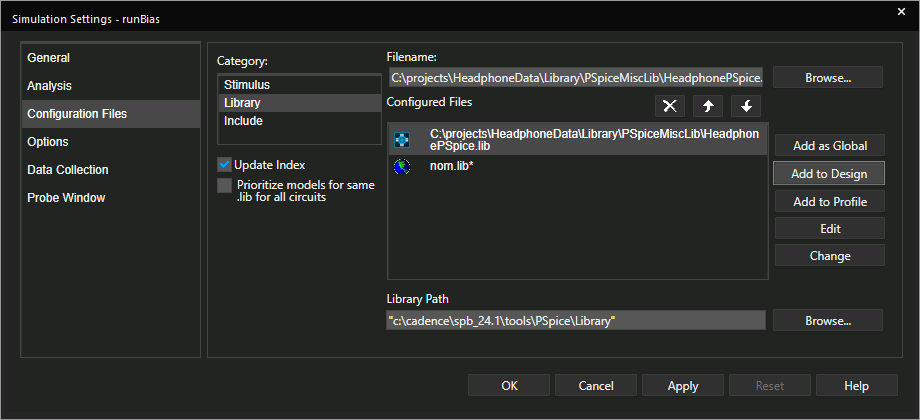
IF using a schematic created from the local CIS database, or from the online component resources, sections, the simulation models library will need to be added, as follows: Left-click the Configuration Files entry on the left of the Edit Simulation Profile pane, then left-click>Library and use the upper Browse button to locate the HeadphonePSpice.lib file from the downloaded data. Left-click>Open after selecting that and left-click the Add to Design button to add the model library to all the Simulation Profiles in this design.
Left-click on OK to accept the Simulation settings and close the Simulation Settings form. Then, from the menu take PSpice>Run to run the simulation.
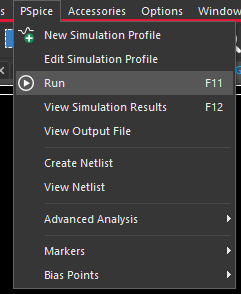
The simulation will then run and report any errors if the design check fails, if you get any, these will need to be investigated and rectified before proceeding with this section. An error like "Floating Node" will mean that a connection to the 0 node is missing and an error like "Floating Pin" would mean that a pin connection is missing. After the simulation completes, the Probe window will be opened, you will see an icon for this on the Taskbar, but the Probe Window will be empty since the Bias Point Simulation will have generated a single result, just the stable bias values for the circuit. The Schematic will have been updated with the values from the Bias Simulation, activate the Capture Schematic window, if it is not already active, to view the schematic. Display of the Bias points is controlled by the VD, CD and PD icons on the toolbar

If not already enabled, left-click on the VD icon to enable the display of the Voltage Bias values in the schematic. (The CD icon can be used to enable the Current Bias values in the schematic, and PD icon for the Power Bias values.) In the following screenshot Voltage and Current Markers have been enabled.
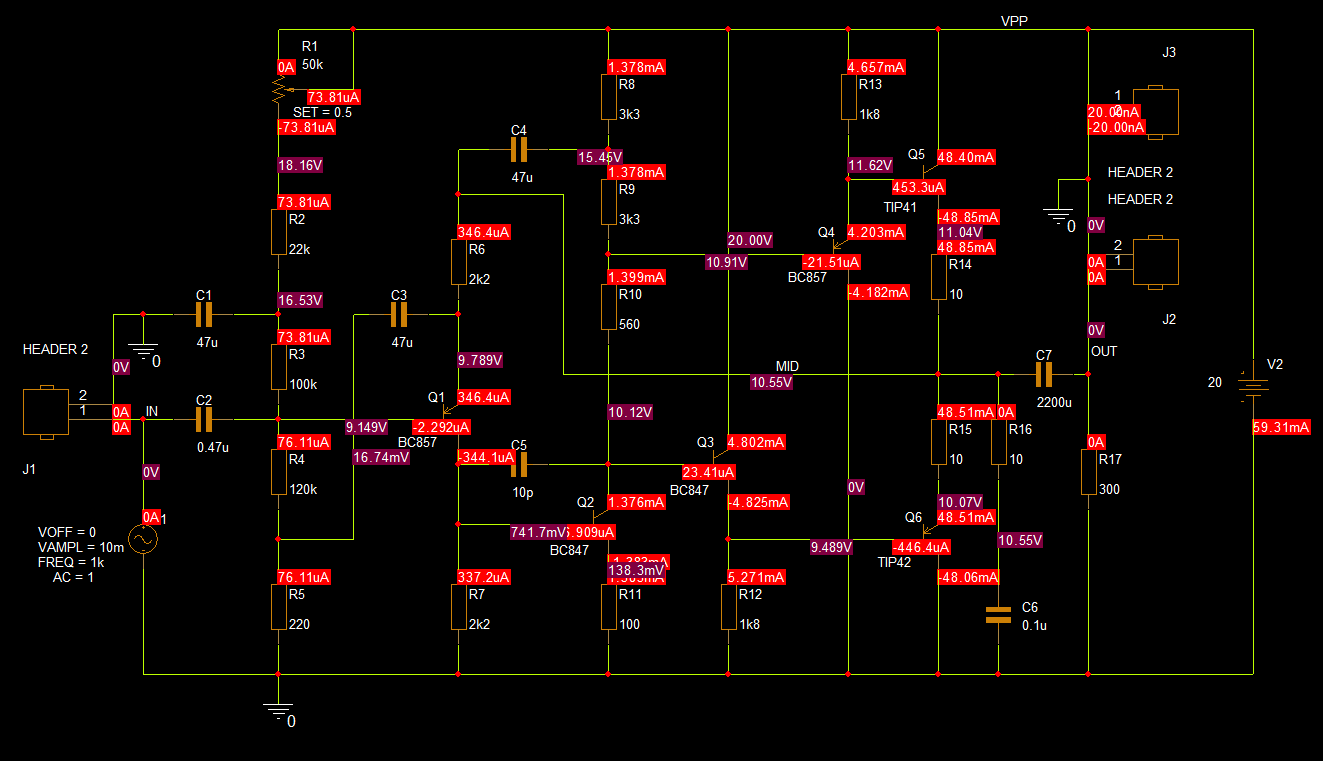
Check that the bias marker values are very close for your schematic, different voltage and current bias values may indicate that the circuit is connected incorrectly, or that the values are incorrect for some circuit elements. Due to automatic placement of the Bias Values in the schematic, it could be possible that some markers overlap giving the impression of larger values than could be possible with the 20V supply. If necessary, the Bias Values can be moved by left-clicking and dragging them, there will be a "dotted trail" from the marker to the net it is attached to once it is moved.
DC Sweep Simulation
From this point onwards, the circuit will need to be correct so be sure to correct any connection or circuit value issues before proceeding
The first thing to correct is the output voltage. With the current values the voltage at the MID net is not set to the mid-point of the power supply, this may not have any adverse effect upon circuit performance, but PSpice can be used to help find the correct bias to set. At present, the set point, effectively the position, for the POT is set to 0.5, the middle of the range, a couple of simple changes will allow the set point (position) to be varied to find the required operating point. Use Place>Component from the menu, select the PSpice entry and set the Search to PARAM and press enter.
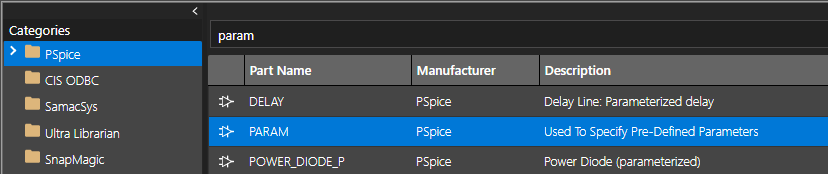
From the results, double-click on the PARAM entry to return to the Schematic Page with the PARAM part on the cursor and place the part towards the upper left of the schematic page, near the POT, as shown in the sample schematic screenshots, with a left-click. Note that the actual position of the PARAM part in the schematic is not critical but since, in this case, the PARAM will only be applied to the set point for the POT, it makes sense to place it nearby.
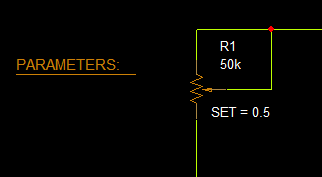
Once the PARAM part is placed, the Properties can be edited and the new Property for the Parameter can be added. Double-click on the placed PARAM part in the schematic to open the property editor.
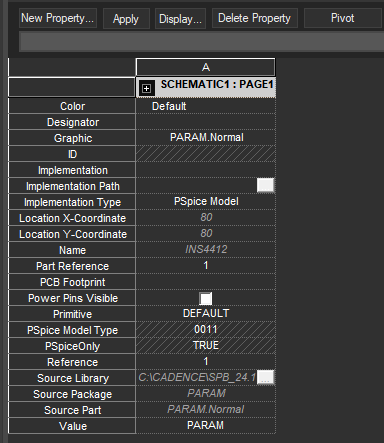
If necessary, use the Pivot button to pivot the Property Editor grid so that the properties are listed at the left-hand side of the tab, this will usually allow all the Part Properties to be viewed without the need to pan, or scroll, through them.
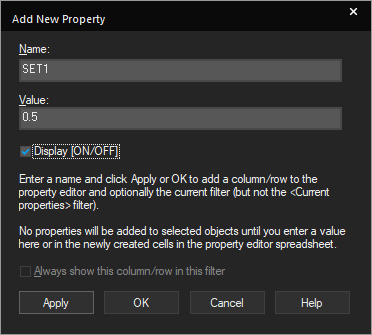
Then add the new Property, left-click on the New Property button to get the New Property form to open.
Set the Name of the new property to SET1 and the Value to 0.5, this will just be a default value for now, set the Display On / Off and left-click>OK to add the value.
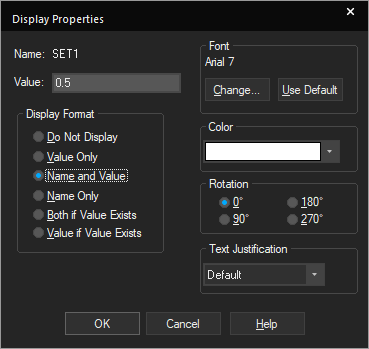
When the Display Properties form appears, set the Name and Value option and left-click>OK. This will make editing the property easier by being able to double-click on the visible text and change the parameter value. (Having the parameter and value visible is not a requirement to get the simulation to run)
The resulting PARAMS part in the schematic.
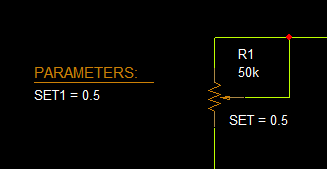
Next the parameter will be assigned to the SET property for the POT, double-click on the SET=0.5 displayed property for the POT part, and change the Value for the SET property from 0.5 to {SET1} and left-click>OK to set the value to use the SET1 Parameter value, instead of a fixed value for the set point of the POT.
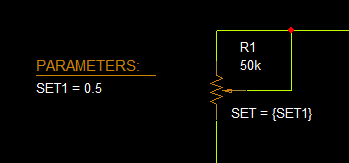
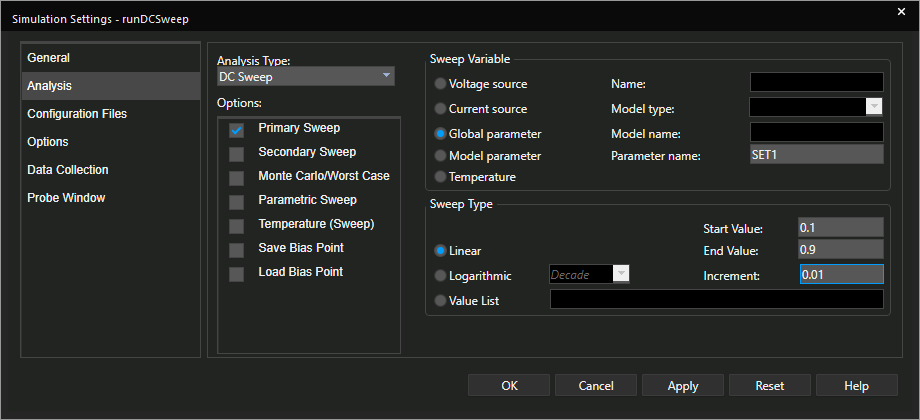
Now that the design has been setup to use a parameter for the setpoint of the POT, a DC Sweep Simulation Profile can be configured to sweep the setpoint of the POT to find the required value to set the output voltage to the halfway point of the supply voltage. Either use PSpice>New Simulation Profile, provide a new name for this Simulation Profile and set the Analysis Type to DC Sweep, or use PSpice>Edit Simulation Profile and change the Analysis Type from the current Bias Point to DC Sweep, in both cases, configure the Simulation Profile parameters as shown:
Then PSpice>Run to run the simulation and, when the Probe Window opens, use Trace>Add Trace and select the V(MID) entry, or add a Voltage Marker (PSpice>Markers>Voltage Level) to the MID net. Note that the OUT net goes through a capacitor so the voltage on that net won't reflect the change in Bias! From the Probe Window, note the point at which V(MID) is at 10V, half the supply.
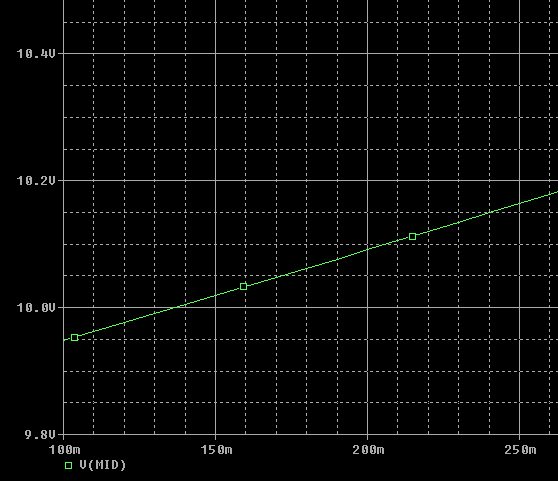
A "visual check" is not going to be too accurate but the PSpice Cursor function can be used to find the "exact" value.
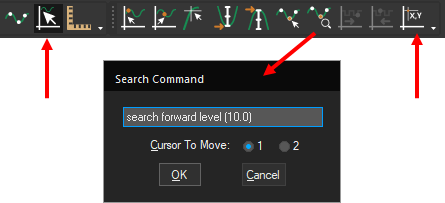
Left-click on the pointer icon to enable the cursor function, then left-click on the magnifying glass icon to open the Search Command, set the search command to search forward level (10.0) and left-click>OK. This will move the cursor along the X axis until the Y axis value is equal to the specified level. The Mark Label icon, rightmost icon shown above, can be used to display the cursor value on the Probe display.
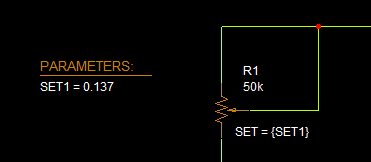
In this case, the marked value is 136.699m, or 0.137 will suffice. The value for your simulation may differ due to the POT having different connections, and the models used, for example.
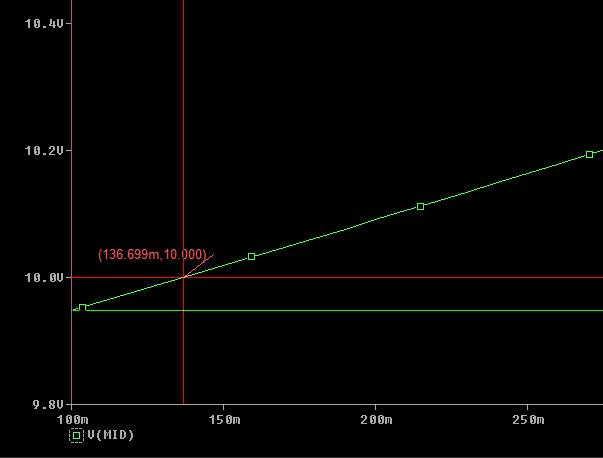
Double-click on the SET1=0.5 text for the PARAMETERS part property and set the value of the SET1 property to the value found for the 10V output, 0.137 in this case or, whatever you found for your circuit.
AC Sweep Simulation
Now that the circuit bias has been established, an AC Sweep can be run to determine the small signal frequency response, since the application is intended to be audio, the sweep will be set for 10Hz to 100kHz. Remember to use MEG as the multiplier if your frequency sweep needs to run to Megahertz!
Either use PSpice>New Simulation Profile, provide a new name for this Simulation Profile and set the Analysis Type to AC Sweep, or use PSpice>Edit Simulation Profile and change the Analysis Type from the current DC Sweep Point to AC Sweep, in both cases, configure the Simulation Profile parameters as shown:
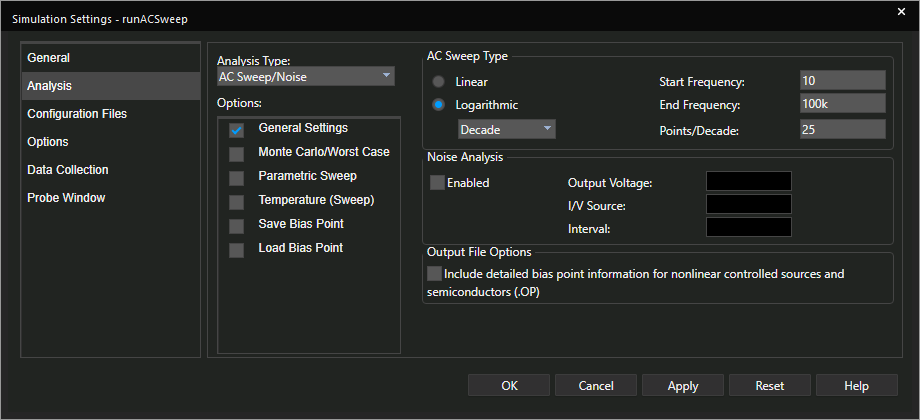
And then left-click>OK to accept the settings. This will run the sweep from 10Hz to 100KHz using 25 points per decade. Next place the DB Voltage Marker on the OUT net, PSpice>Markers>Advanced>dB Magnitude of Voltage. Delete the Voltage Marker from the MID net if you added one for the previous simulation.
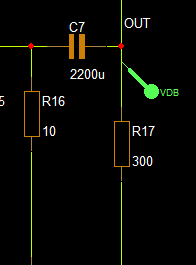
Then run the simulation, PSpice>Run, the simulation will run and the the Probe Window will open with the frequency response at the OUT net shown. The Probe in the schematic will change to reflect the trace colour.
Transient Simulation
To complete the Analysis types, a Transient Analysis will be run and the output waveform checked.
Either use PSpice>New Simulation Profile, provide a new name for this Simulation Profile and set the Analysis Type to Transient, or use PSpice>Edit Simulation Profile and change the Analysis Type from the current AC Sweep Point to Transient, in both cases, configure the Simulation Profile parameters as shown:
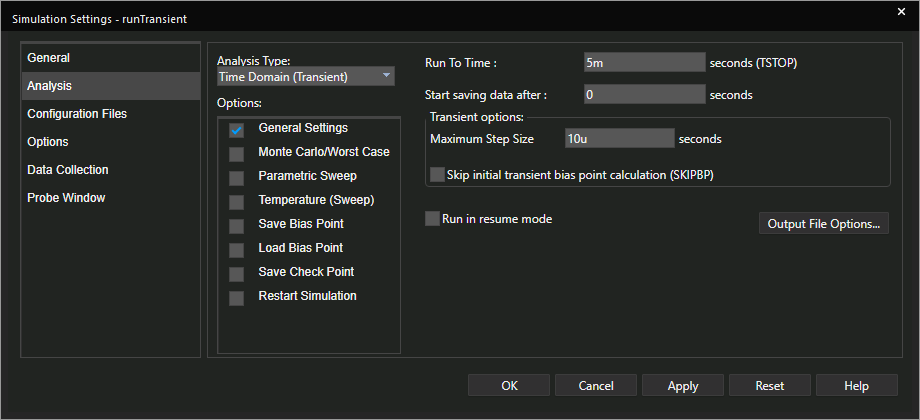
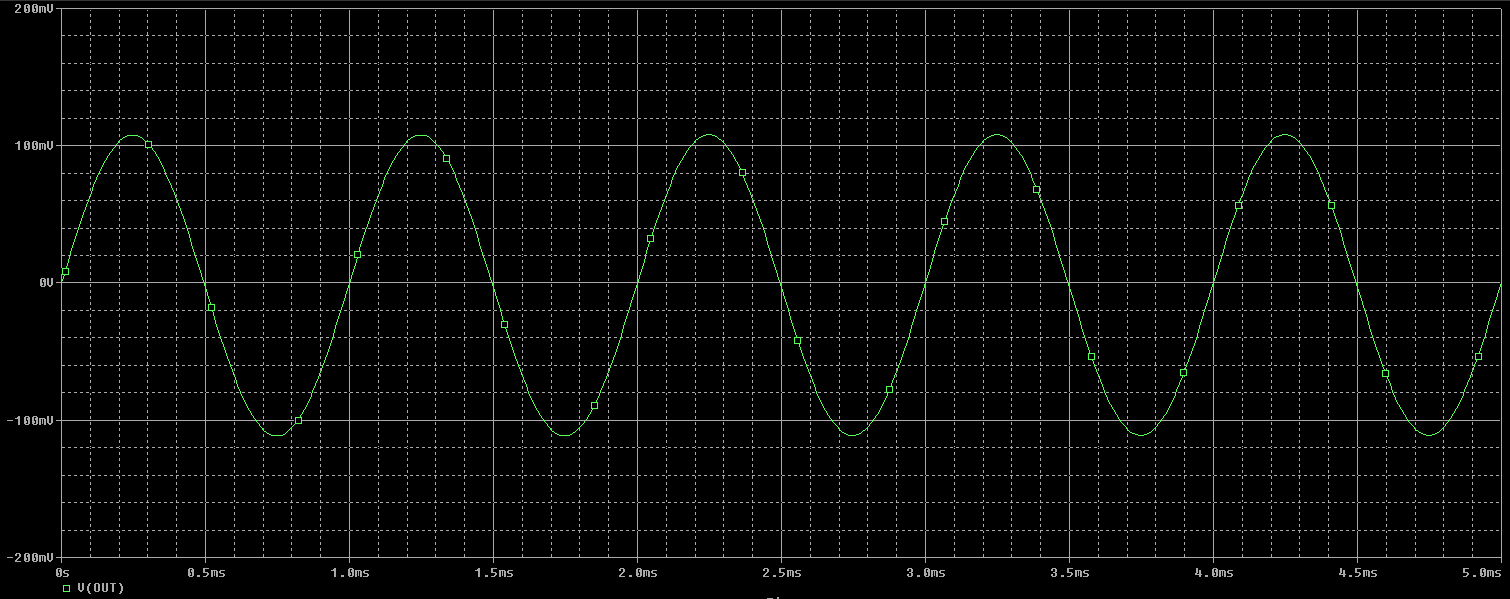
This profile will run the simulation for 5ms, 5 cycles of the 1kHz input source, the Maximum Step Size setting forces the simulator to re-evaluate the circuit at least every 10uS to improve the resolution of the output. Place a Voltage Marker on the OUT net, if you edited the previous simulation profile, remove the DB Voltage marker first (select it and Delete), PSpice>Markers>Voltage Level. Then run the simulation, PSpice>Run from the menu. The simulation will run and the the Probe Window will open with the waveform at the OUT net shown. Again, the Probe in the schematic will change from grey to reflect the trace colour.
Now that the schematic has been completed, move on to the next section to look at laying out the physical design. Note that it is recommended that you simulate the circuit before moving onto physical layout to check that the circuit has been entered correctly.
This next part of the tutorial assumes that you have completed all the steps in one of the previous Entering the Schematic sections and this one, then move to the next section
* This next part of the tutorial assumes that you have completed all the steps in the previous sections
Physical Layout with OrCAD X PCB Editor
After you have completed your design, it is recommended that you run a design rule check (DRC) to isolate any unwanted design errors that might be there. To run a DRC on the headphone design, complete the following steps:
1. In the Project Manager pane select the design file headphone.dsn.
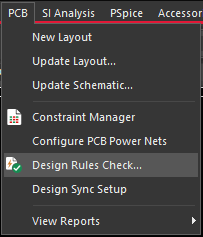
2. From the PCB menu select Design Rules Check
3. In the Design Rule Check dialog box, check Options for DRC Action, Run on Design.
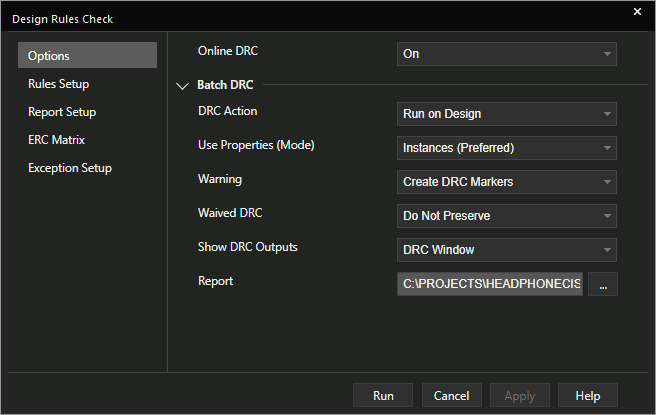
4. Left-click the Rules Setup and Report Setup on the left to view the settings.
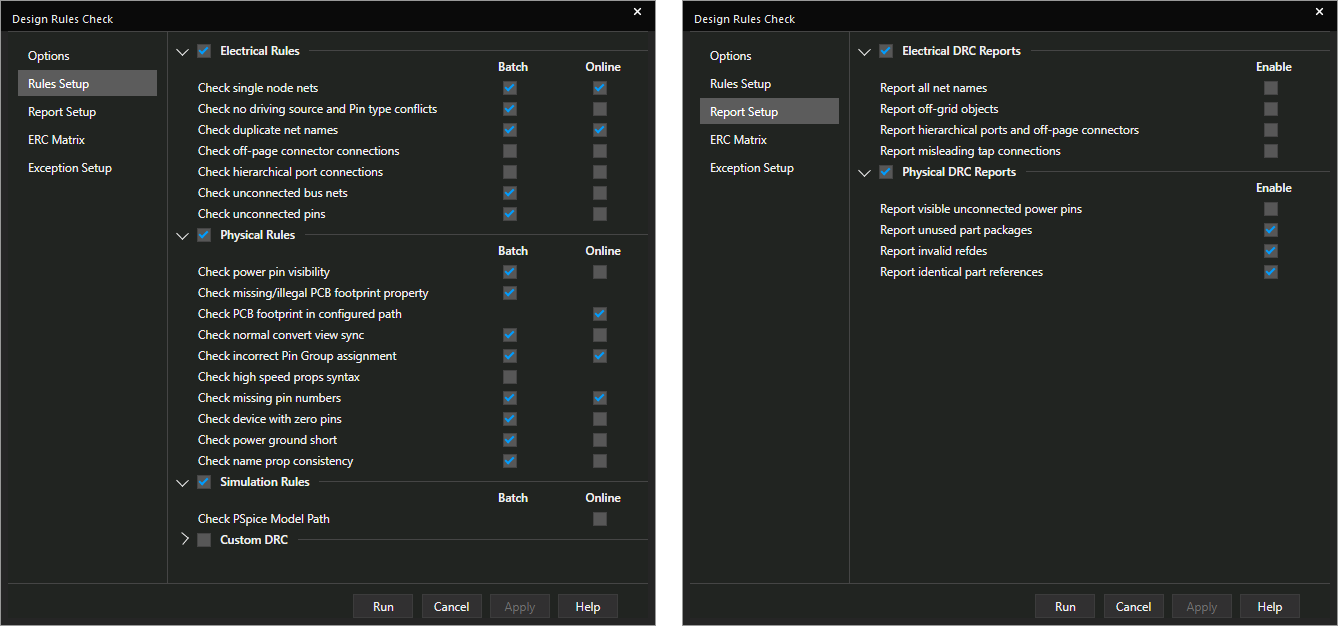
5. To run the DRC, left-click>Run.
The DRC report is generated. To view you can either look at the Session log or access the report from the Outputs folder of the Project Manager pane.
Note that a DRC Warning will be flagged for the PARAM part in the Schematic. As this part has no Pins, the "Check device with zero pins" batch DRC option gets this warning issued. This DRC Warning can be ignored as it won't have any impact on any subsequent steps
OrCAD X PCB Editor initial configuration when using footprints from the download data
Start PCB Editor 24.1 from the Cadence OrCAD X and Allegro X 24.1 Windows Start Menu group. If you see Cadence Product Choices, pick any license and left-click>OK. Go to Setup>User Preferences. In the Paths / Library section, left-click the ... for the psmpath entry and use the “+” icon to add a new entry and left-click the “…” button to browse to the location of the symbols folder that the downloaded data was saved to. Left-click>Choose and use the “up arrow” to move that location to the top of the list and left-click>OK.
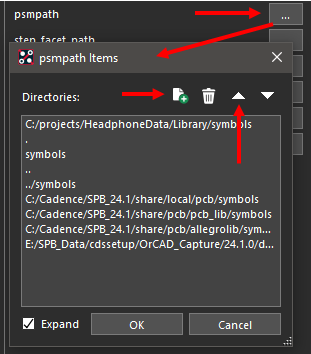
Repeat the steps to add that location to the Paths / Library / padpath preference. Left-click>OK to close the User Preferences Editor and left-click>File>Exit to close OrCAD X PCB Editor for now.
(This isn’t required for the online component sources, or using the generic libraries from the installation, as the path values are set by default.)
Creating the initial board from OrCAD Capture CIS
If not already open, start OrCAD Capture CIS and open the headphone design.
In the Project Manager pane select the design file entry headphone.dsn.
From the PCB menu select Design Sync Setup. Check, or change, the “Select Layout tool” drop-down to PCB Editor and left-click>OK
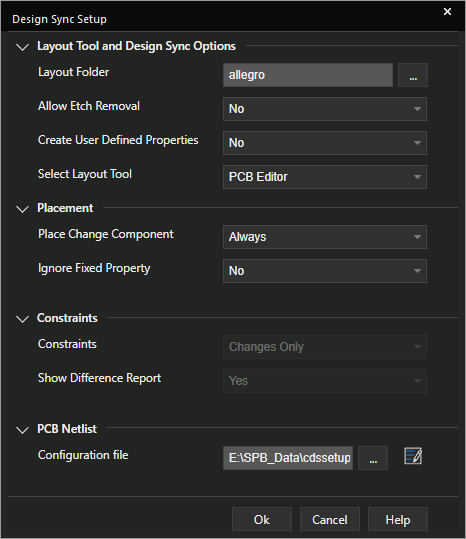
From the PCB menu, select New Layout
Check that the Input Board File is empty to create a board with a default template and left-click>OK
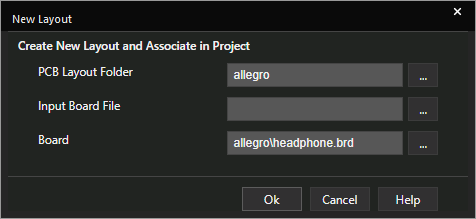
If you see Cadence Product Choices, pick any license and left-click>OK.
The board file, headphone.brd based on a default template, opens in OrCAD PCB Editor
Capture can be closed at this point, "Yes All" to save any changes.
Setting up OrCAD X PCB Editor
These next few steps will guide you through some basic settings inside OrCAD X PCB Editor for this tutorial.
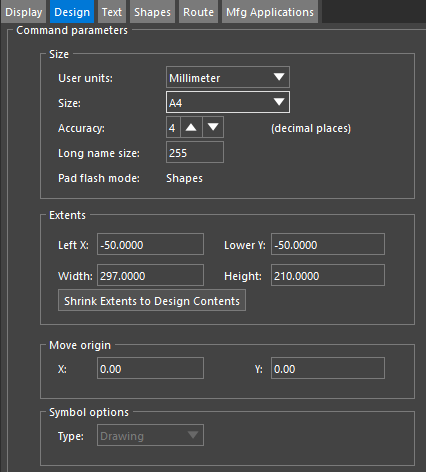
Take Setup>Design Parameters and left-click the Design tab. Check / change the User units drop down to Millimeter, OK any accuracy messages, and check / change the Size to A4. Then check / change both the Left X and Lower Y to -50. (This will move the drawing origin away from the lower left corner of the specified page size.). Leave the other parameters and left-click>OK to accept the changes to the Design Parameters.
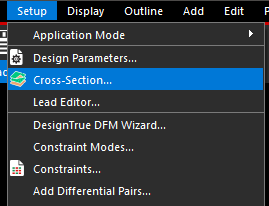
Use Setup>Cross Section from the menu to open the cross section editor.
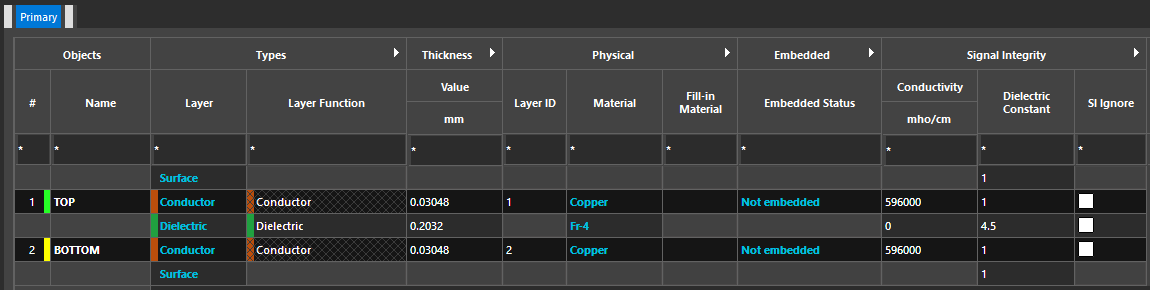
Here is the initial cross section and default material parameters:
To illustrate changing the cross section, the Conductor material will be changed to Half Oz Copper. Left-click in the Material cell for each conductor layer and select the Half Oz Copper material.
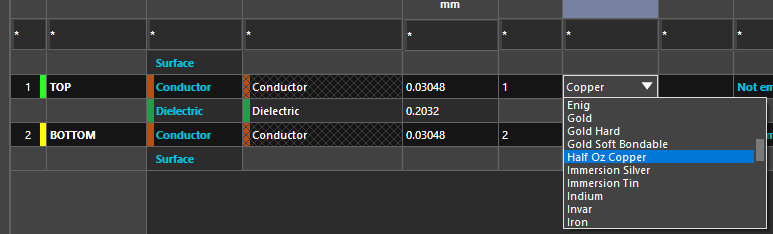
The Thickness and Tolerance will be filled in from the materials settings. Left-click in the Thickness Value cell for the Dielectric layer to get to a total of 1.62mm for the board thickness. That's 1.58444mm in this case.
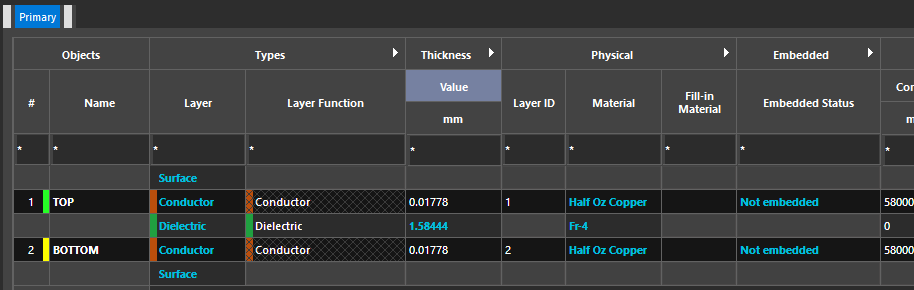
Left-click>OK to close the cross section editor and accept the changes.
Then take Outline>Design, set the Design edge clearance to 1.0, set the Width to 40 and the Height to 50, then move the mouse from the Design Outline form and the outline will be attached to the cursor. Move the mouse to the Command prompt, left-click in the command prompt, type x 0 0 and press Enter. (This will place the design outline at the drawing origin.) Left-click>OK in the Design Outline form to accept the changes. (The Design Outline will be placed with the Package and Route Keepins 1mm inside it.)
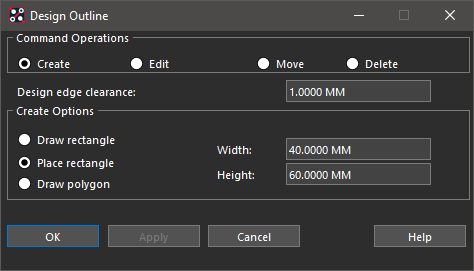
Use File>Save to save, and overwrite, the board at this point
This tutorial uses a simple rectangle for the Design Outline which defines the boundary of the PCB. This can be used for ECAD-MCAD Transfer using DXF, IDX and MCADX as well as manufacturing data.
Use Display>Zoom>Zoom Fit to fit the Design Outline to the canvas
If required, you can adjust the colours of the layers (called Classes and Subclasses). To do this take Setup>Colors from the main menu. The Design Outline is in the Geometry section under Board. Left-click on a square in the Available Colors section and then left-click on the colour square for the subclass entry to set. Left-click>OK to close the colour setup. This method can be used to change any other colours.
Adding Mounting Holes
Now that we have a board outline, let's add some mounting holes to the PCB.
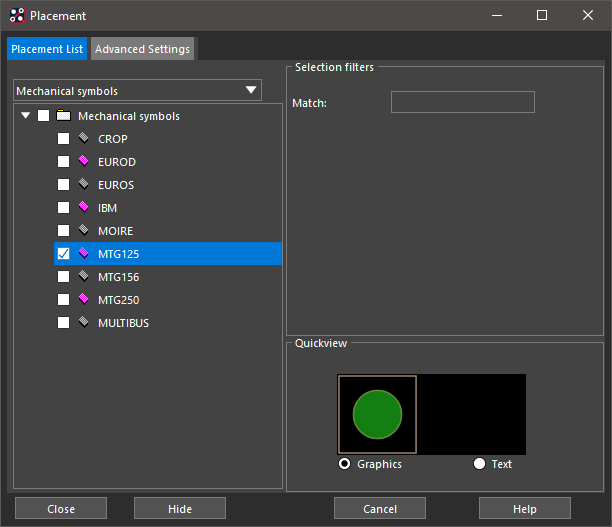
1. Place>Mechanical Symbols. You will see a list of default Mechanical Symbols to choose from.
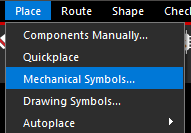
2. Select the MTG125 from the list and place 4 of these on the canvas with left-clicks, selecting the MTG125 each time. Left-click>Close to close the Placement form.
3. Hover the mouse over one of the placed mounting holes and right-click>Move, then move to the Command prompt and type x 3.5 3.5 and press Enter. Repeat the "move" steps and place the remaining mounting holes at x 3.5 46.5, x 36.5 3.5 and x 36.5 46.5.
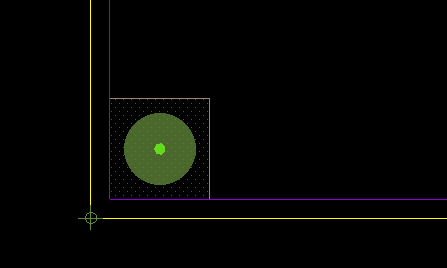
(The placed mounting holes could be fixed by selecting them and taking right-click>Fix with the Symbol active.)
4. Use File>Save to save the board.
Assigning colours to identify Nets
To aid placement and routing, Nets can have colours assigned.
1. Take Setup>Colors, left-click on the Nets tab. Left-click a square in Available colours and left-click the square for Net and the 0 entry to assign the colour, green in this case. (Note that the Net Name may be GND if the PSpice simulation setup steps weren't taken when creating the schematic)
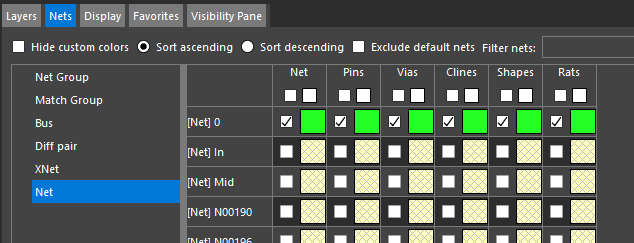
2. Repeat the previous steps to assign colours to the Mid, blue was used for this, and Vpp, yellow was used for this, Nets. Use other colours if you prefer.
Placing Components.
After you have created the board outline, placed the mounting holes and assigned Net colours you can start to place the components in the board. OrCAD X PCB Editor supports both manual and automatic placements. For manual placement you can place parts: from the schematic one part at a time; from the Place>Components Manually list; or by importing the placement.
In this section, start with manual placement from the Place>Components Manually list to create the PCB for the headphone design.
1. For this example, use Setup>Grids and set the Non-Etch grids to 0.5 and the All Etch grids to 0.1.
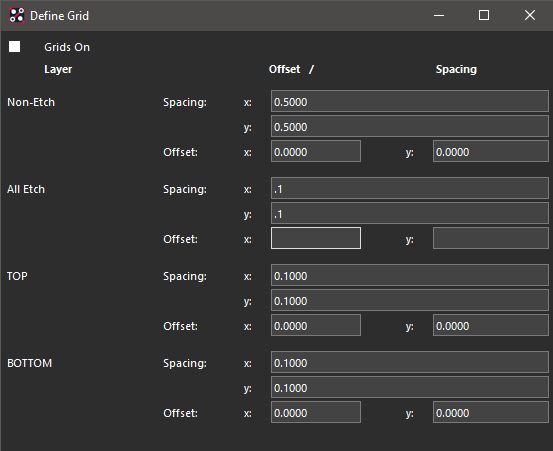
If required, Alignment Guides can be enabled through Setup>User Preferences, Display, Align Guides, Enable Dynamic Alignment
2. To access component placement, use Place>Components Manually. This will display a list of components to be placed. Enable the box to the left of the RefDes to select the component, or components, to place. Move the mouse into the PCB Editor canvas to have the component attached to the cursor, left-click to place the component.
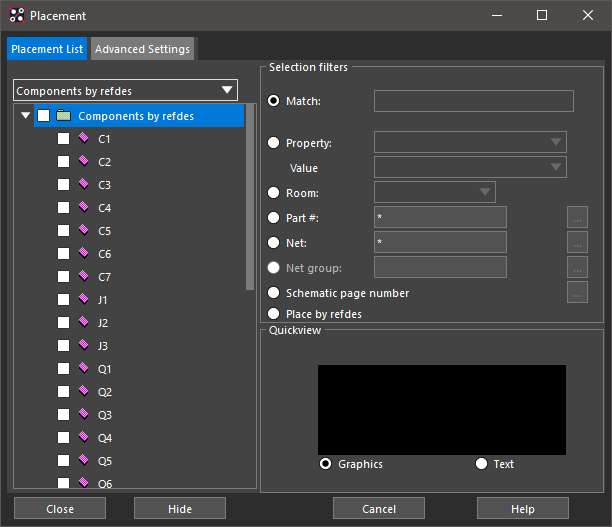
Since there aren't many components to place in this case, an alternative is to use Place>Quickplace to quickly "dump" the parts on the canvas and then move the parts from there. Use the settings in the image below and left-click>Place to place the components from the Quickplace form.
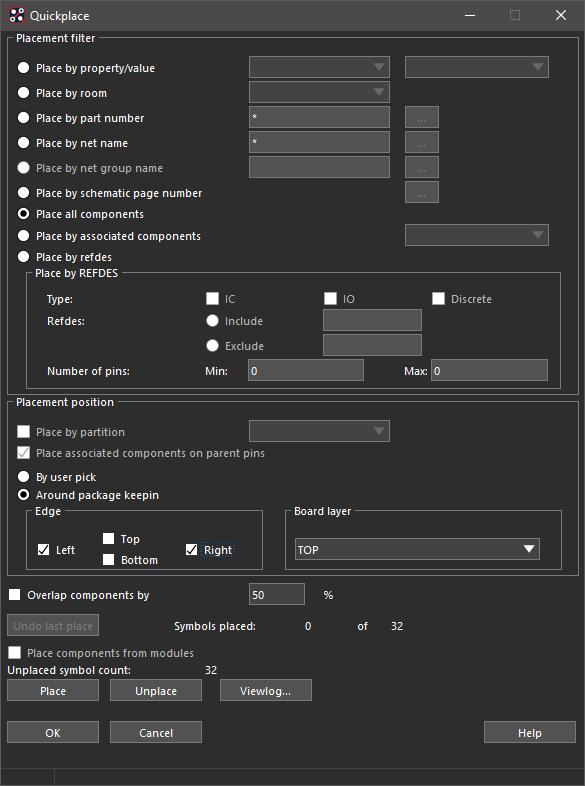
Once placed, using Setup>Application Mode>Placement Edit will favour placement and a left-click on a placed component will attach that component to the mouse cursor for moving and placing. While a component is attached to the cursor, use right-click>Rotate to activate rotate.
See this shot of a sample placement. (Note that your Reference Designators may differ depending on the schematic entry session followed)
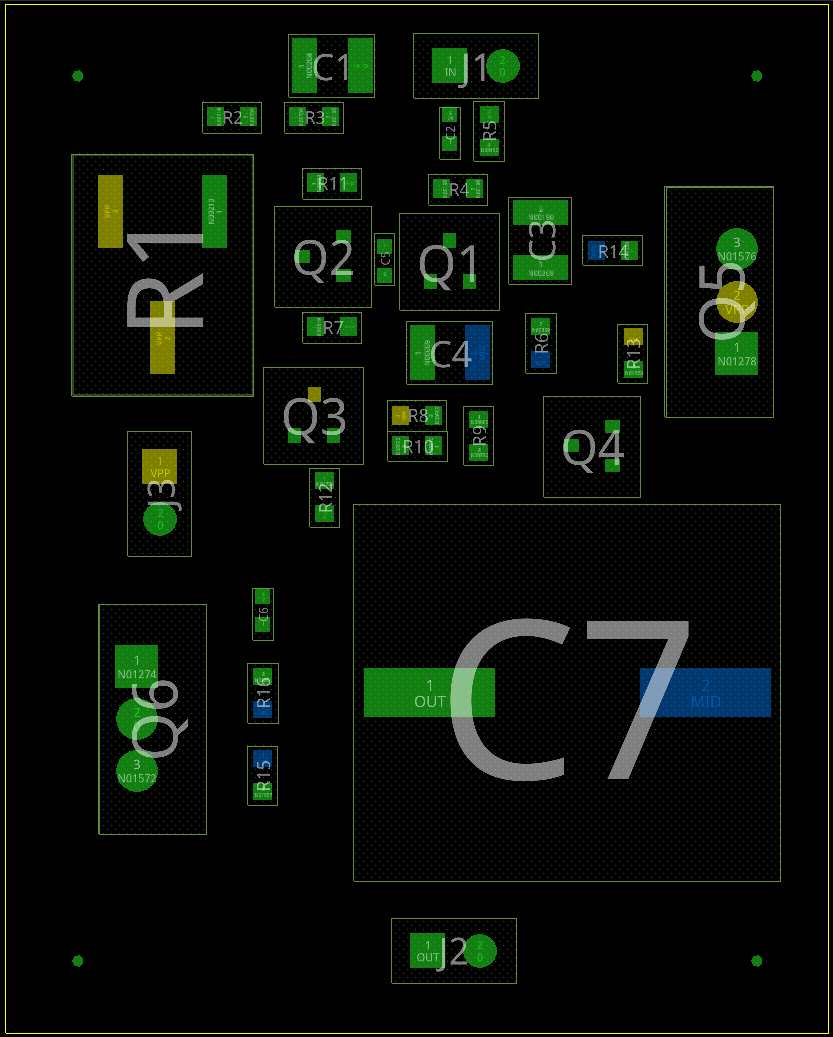
The components with Pins connected to the Vpp Net are roughly grouped around the centre of the board so that a Shape can be used to connect them in later steps.
(Feel free to experiment with placing from the Schematic which require both OrCAD X Capture and OrCAD X PCB Editor running side by side. With Placement active, left-click a component in the Capture Schematic and it will be attached to the cursor when moving to the OrCAD X PCB Editor canvas.)
If you are using the online component sources, you may find that the footprints are somewhat larger than the footprints used for the CIS database approach. Select the Shapes for the Design Outline and Keepins and drag the corners, or vertices, to enlarge the board area, as necessary, to ease the placement process.
Tip: To Find a component in OrCAD X PCB Editor: activate Find, check that Symbols are enabled in the list, type the required RefDes into the Find By Name box and then press Tab, or Enter.
Design Rule Checking
OrCAD X PCB Editor maintains DRC while making changes to the board, use Check>Status to see the current status of the design. Note that Update Shapes followed by an Update DRCs may be required to get the current DRC status. Use the raised buttons for quick reporting from the Status display, "Unplaced Components" for example.
Setting the Design Constraints
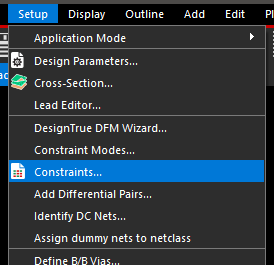
To configure the basic spacing and physical constraints for your board design, select Setup>Constraints. A window appears showing the default settings. For this tutorial, rules will be configured for “default” and “power” Nets.
1. Use Setup>Constraints to launch Constraint Manager.
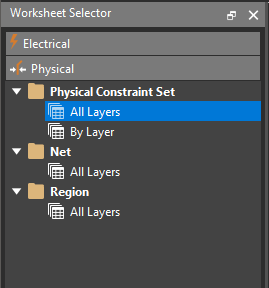
2. Left-click Physical on the left.
3. Left-click in Physical Constraint Set, All Layers
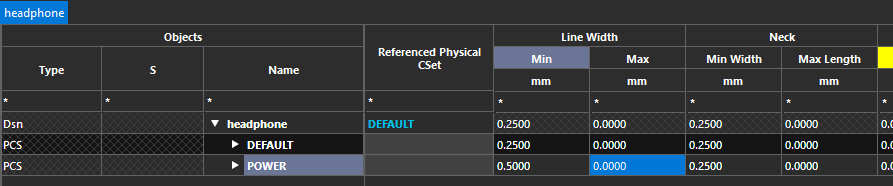
4. Change the value for the DEFAULT rule for Min in Line Width to 0.25
5. Change the value for the DEFAULT rule for Min in Neck Width to 0.25

6. Left-click in the Via cell for the DEFAULT rule. In Filter by Name type via to filter the via names. Double-click VIA-0_5-0_2 from the list to add to the Via List. Select the default VIA entry in the Via List pane and left-click>Remove. (or double-click the entry to remove it) Then left-click>OK to set the Vias in the design.
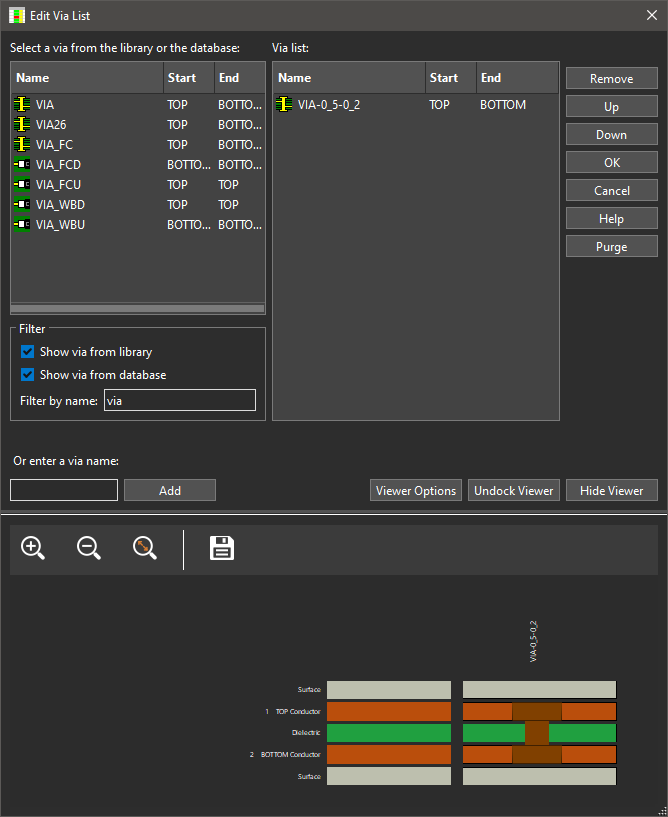
(The required VIA-0_5-0_2 is in the downloaded data. Leave the VIA entry, which will be a larger via, if not using the downloaded data)
7. Right-click in the DEFAULT cell and take Create>Physical CSet, name the new CSet power (This will be converted to uppercase after the OK) and left-click>OK
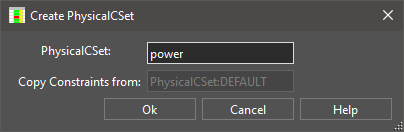
8. Change the value for the POWER rule for Min in Line Width to 0.5
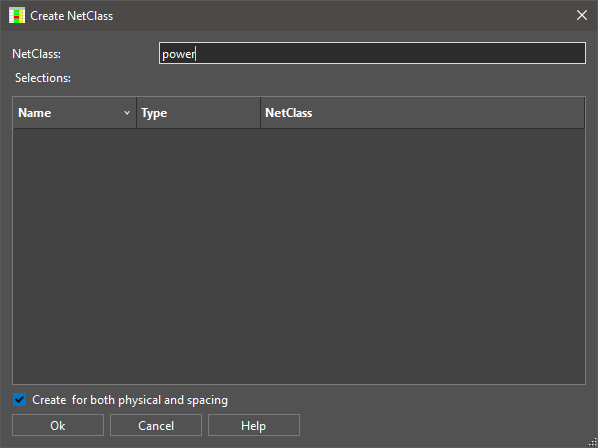
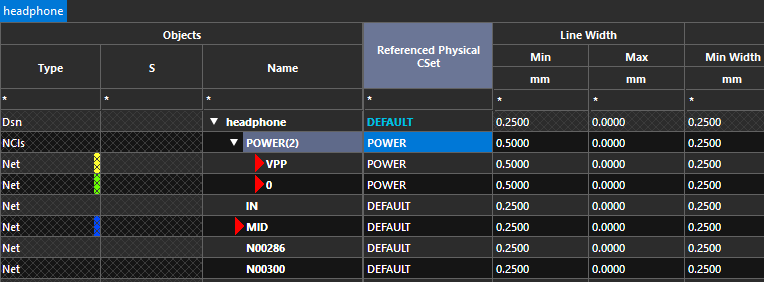
9. Move to Net, All Layers. Right-click in the Headphone cell and take Create>Class, name the new Class Power and ensure that Create for both physical and spacing is enabled.
10. Locate the 0 Net in the list and use right-click>Add to>Class select POWER from the drop-down at the top and left-click>OK to add the Net to the Class.
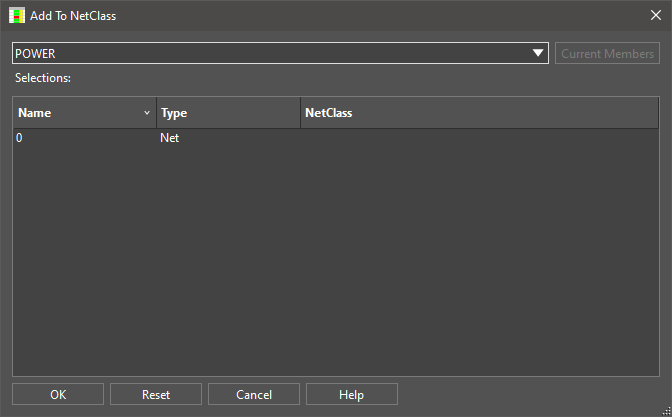
11. Repeat the previous step to add the VPP Net to the POWER Class.
12. In the POWER Class, left-click in the Referenced CSet cell and select POWER from the drop-down.
13. Now move to Spacing on the left with a left-click.
14. Left-click, Spacing Constraint Set, All Layers
15. Left-click in the Line To cell for DEFAULT, ensure that the cell is selected and not the value, then drag the mouse to the Bond Finger To cell to select the row. The Bond Finger To cell will be opened for editing, change the value to 0.25 and press Tab, or Enter, to set the values.

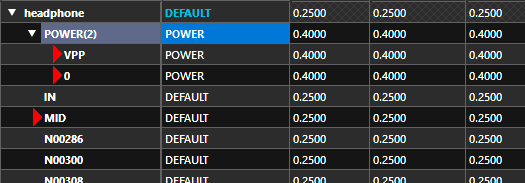
16. Right-click in the DEFAULT cell and take Create>Spacing CSet, name the new CSet POWER and repeat the previous step to set the values to 0.4

17, Move to Net, All Layers and left-click in the Referenced CSet cell for the POWER Class and select POWER from the drop-down.
Routing
After completing the board placement, you can route the headphone board to complete the electrical connections between components.
OrCAD X PCB Editor supports manual or assisted routing. For this tutorial, manual routing will be used.
The basic steps involved in the manual routing process are as follows:
Check the board outline, via definitions, routing and via grids.
Route power and ground
Fan out surface mounted devices and verify connections to power and ground.
Route the remaining signals using the manual routing tools.
Optimise routing using the manual routing commands.
Check for route spacing violations and check routing statistics.
Connecting VPP and GND (0) nets
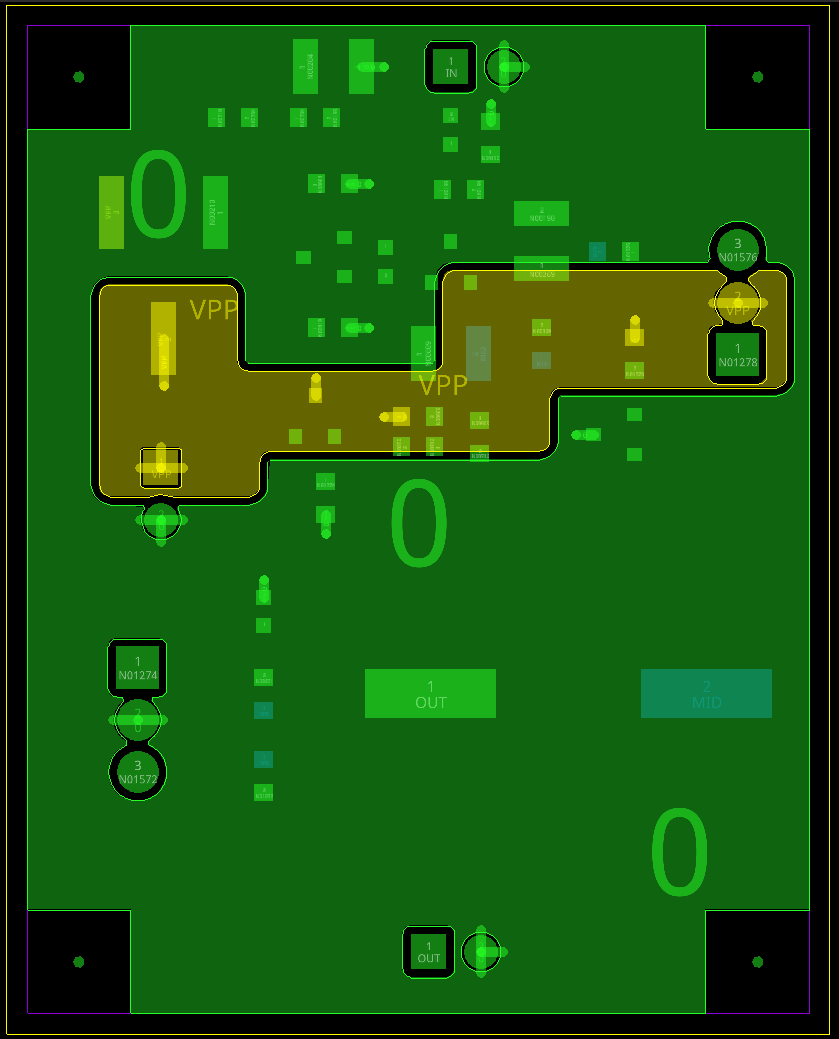
For this tutorial, these Nets are going to be, primarily, connected by Shapes on the Bottom Layer.
1. Take Setup>Colors, left-click>Off for Global Visibility. In the Stack-up group, left-click the All square for Bottom, left-click the Pin square for Top.
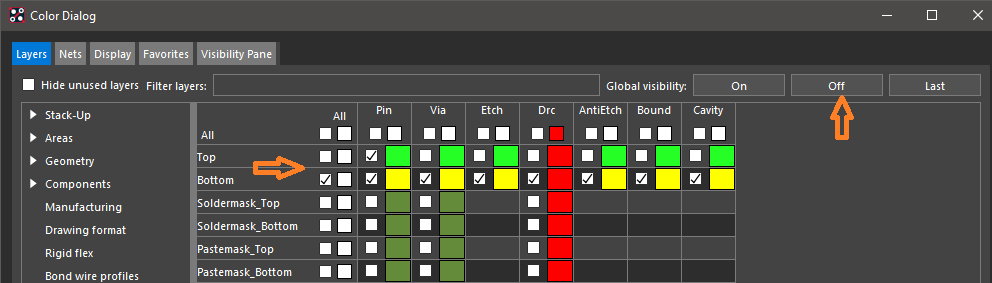
Move to the Geometry group and left-click the square for Design_Outline to make that visible.
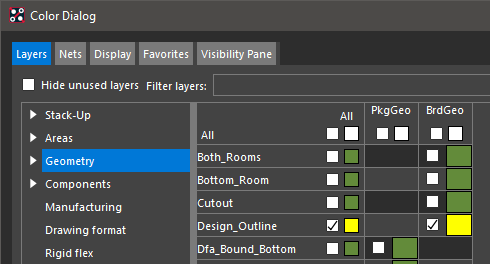
Left-click on the Areas group and enable the All visibility of both Pkg KI and Rte KI.
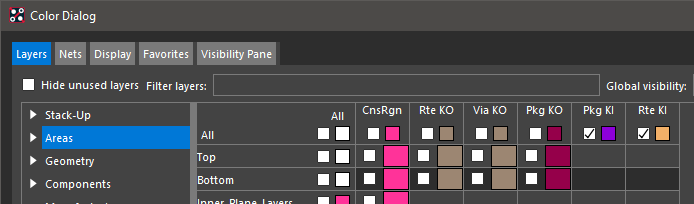
Then left-click>OK to close the Color Dialog.
2. Take Shape>Polygon from the menu.
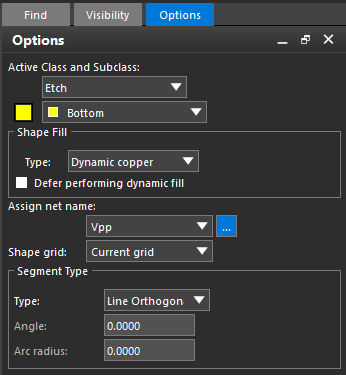
3. In Options, set the Active Class and Subclass for the Shape to be Etch and Bottom using the drop-downs. Left-click the ... button for Assign Net Name and double-click the Vpp entry. Left-click in the Type for Segment Type and pick Line Orthogonal.
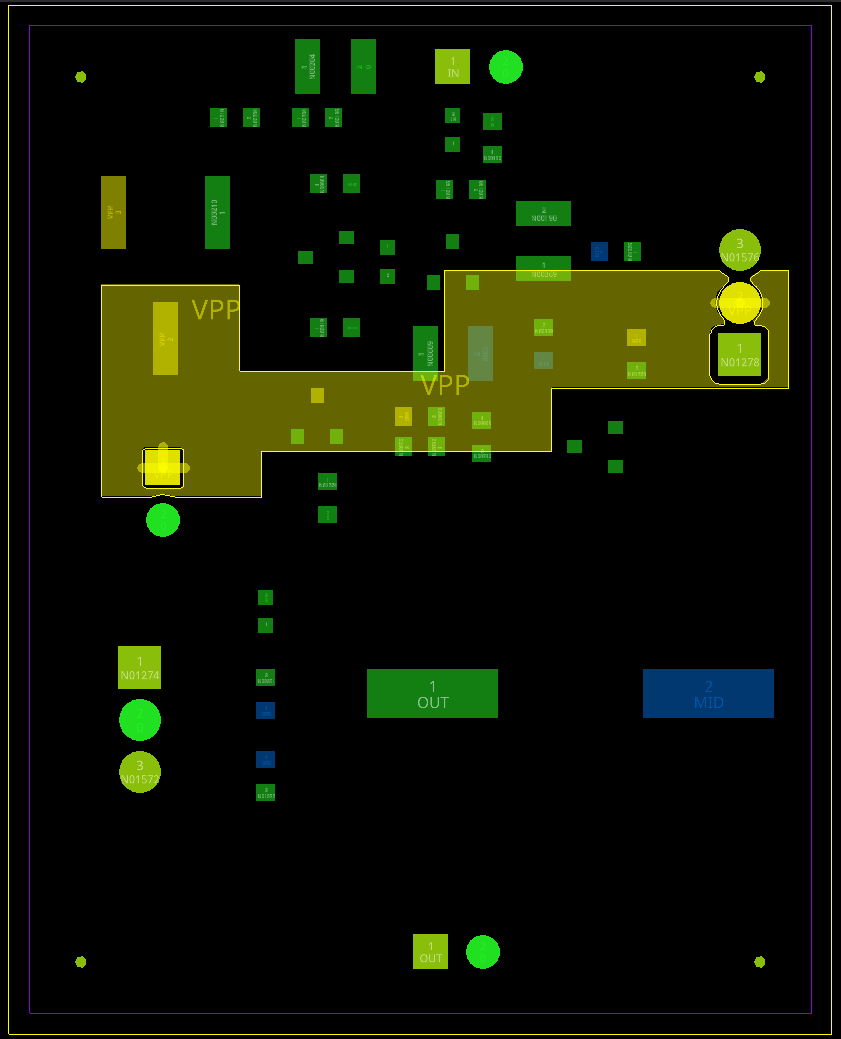
4. Move to the canvas and use a left-click to start adding the Shape around the yellow, coloured, Vpp Pins, use left-clicks to add corners to the Shape as it is added. Note that the Shape Boundary may not cross itself and that the Shape being added will always be "closed" back to the initial point that the Shape was started from. Right-click>Complete to finish the Shape without needing an exact click on the starting point. The Shape can still be edited at this point using the corners and vertices. Use right-click>Done to end adding the Shape.
5. Use Setup>Application Mode>Shape Edit to favour Shape Editing. In Options, check that the Active Class and Subclass are set to Etch and Bottom, set the Corners to Round and the Radius to 0.5.
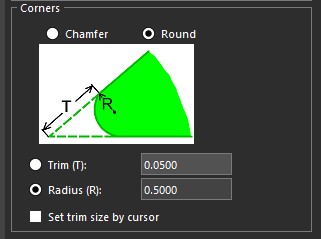
Move to the canvas and select the Vpp Shape with a left-click, then right-click>Trim Corners.
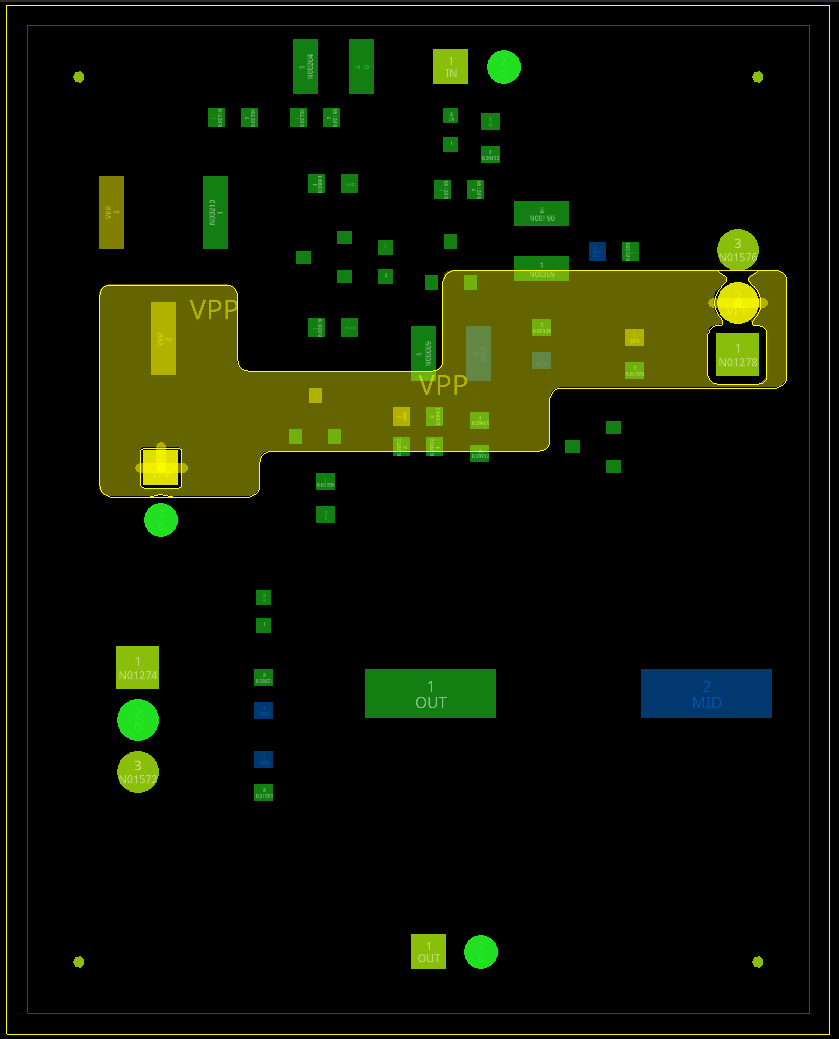
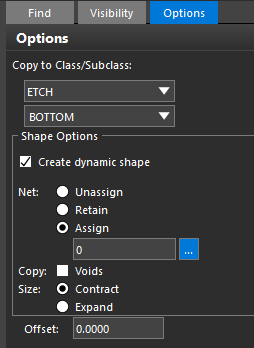
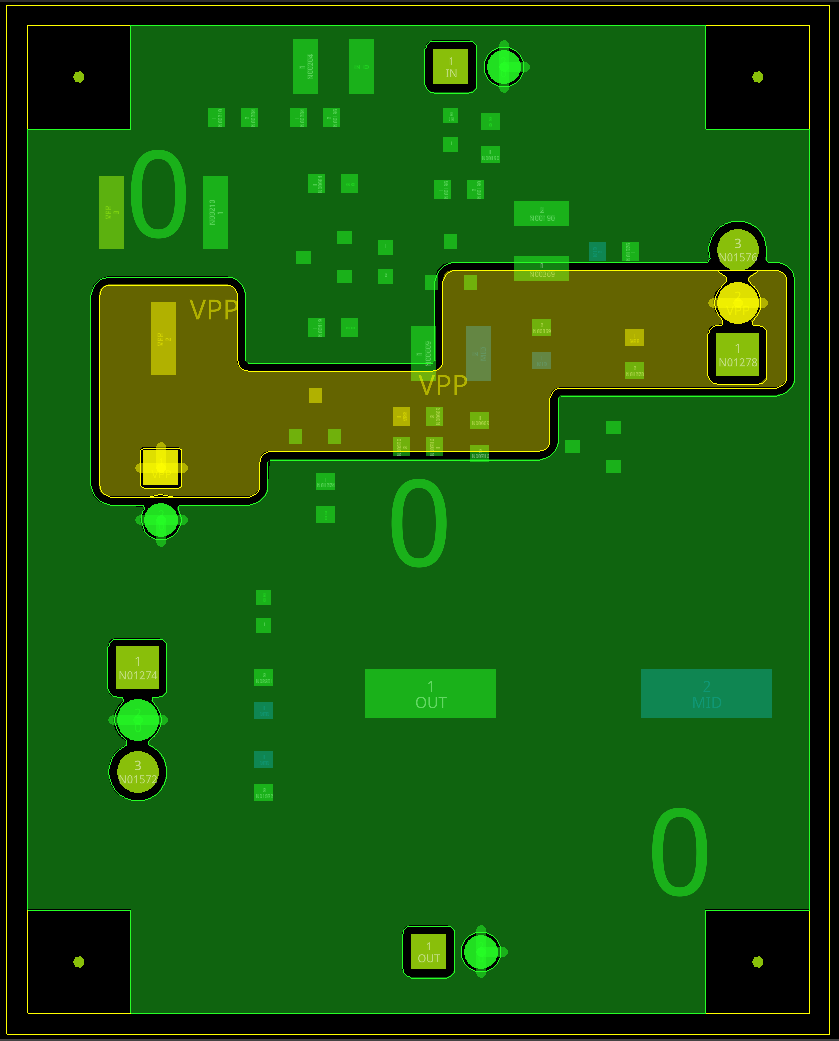
5. Use Setup>Application Mode>General Edit to revert to general editing. Then Shape>Z-Copy from the menu. In Options, set the Copy To Class / Subclass to Etch and Bottom, enable Create Dynamic Shape, set the Net to Assign, use the ... under assign to browse the Nets, and double-click the 0 entry to assign the Net. Move to the canvas and left-click the Keepin In boundary to create the Shape.
The Vpp Shape will be cleared from the added 0 Shape. If that isn’t the case, use Shape>Select Shape or Isolation / Cavity, hover the mouse over the a Shape and select Raise Priority, or Lower Priority.
6. Select Route>Create Fanout from the menu. In Options, set Start / End to Top / Bottom, and set Via Direction to Outward.
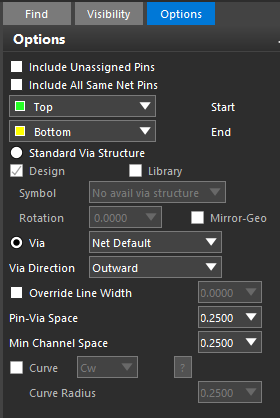
In Find check that only Pins are enabled. Work through the Pins for the 0 and Vpp Nets, left-clicking on the Pins to add the fanout. Right-click>Done to end adding the fanout.
Connecting the “other” Nets
1. Go to Setup>Colors and, in Stack-up, turn off all the Bottom objects and turn on all the Top objects.
2. Use Route>Connect to initiate routing. Check Options for Top / Bottom being the layer selections and Line Lock is set to Line / 45. Also check that Find has, at least, Pins enabled.
3. Left-click on a Pin to start adding a connection. Left-click to accept what is routed and, potentially, add a corner. Left-click on the target Pin to complete the route. Double-click while routing to add a Via
You could simply left-click on Pins to make the connections and then revise the routing or you could more carefully add the routing avoiding conflicts.
In any case, you may need to delete and reroute some of the connections. Trace Segments and / or Traces will need to be enabled in the Properties panel Selection Filter pane. Select a Trace, or Trace Segment and right-click>Delete, to delete the selected item.
To Slide a routed connection, ensure that, at least, CLine Segs are enabled in Find and then left-click and drag on a CLine Segment to move the connection.
You may also find that, as routing is added, revision to placement is required.
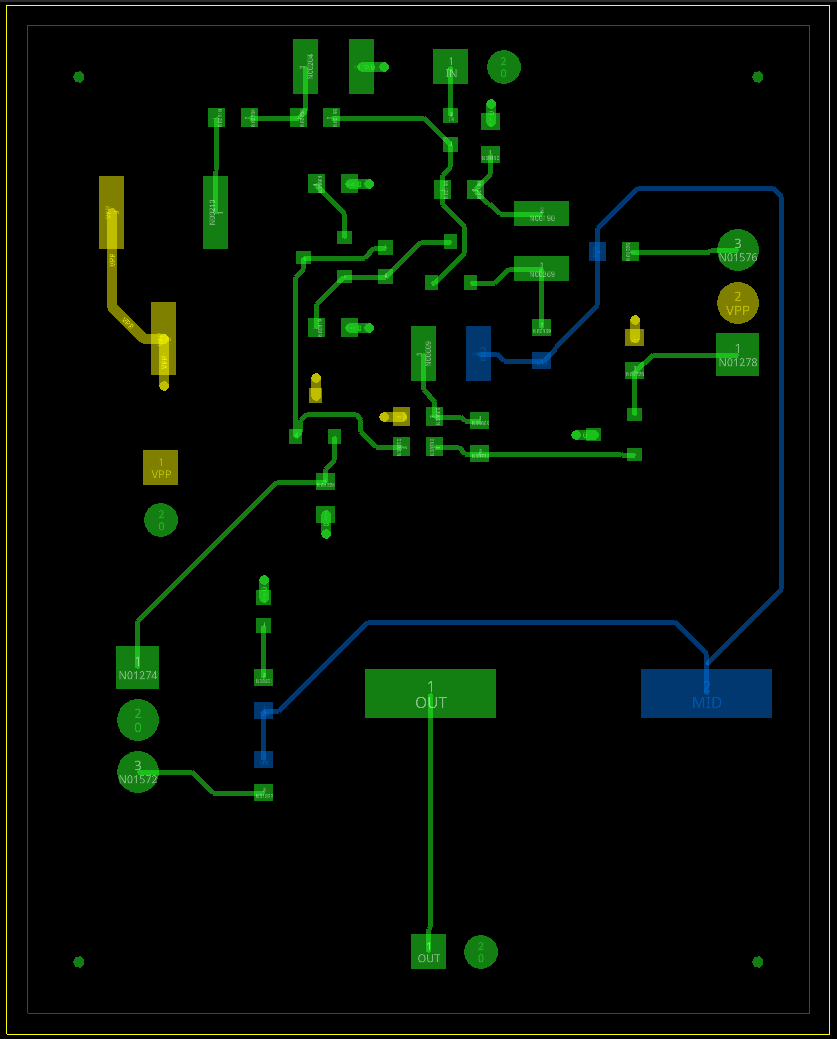
Once you are happy with the placement and routing, move onto the next steps.
Generating output
Nothing gets manufactured without manufacturing data. OrCAD X PCB Editor generates Gerber, IPC-2581 and, with the third-party ODB++ Inside application is installed, ODB++ format.. For this example, Gerber (Artwork) and drill (NC) data will be generated. the data that gets exported for manufacturing is controlled by the configured Films.
1. From the main menu, take Export>Gerber
2. Left-click the General Parameters tab in the Artwork Control Form and check that the Device Type is Gerber RS274X and that Integer places is set to 2 and Decimal places is set to 5.
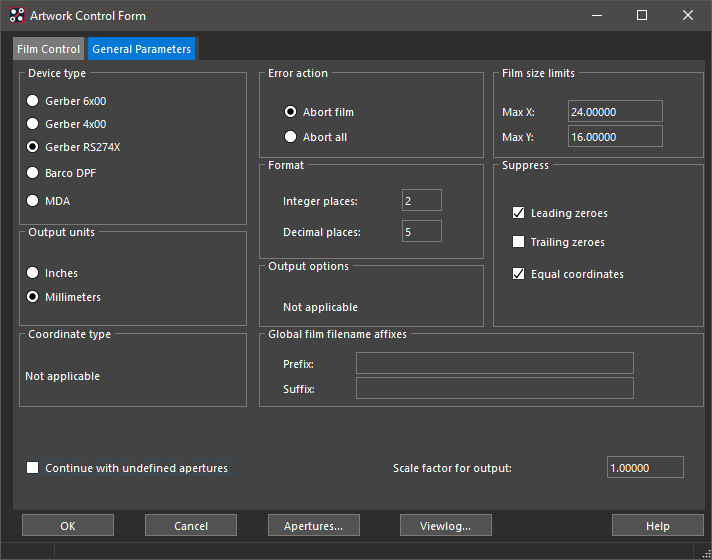
3. Move back to the Film Control tab. Note that the Films for the Etch (routing) Layers, Top and Bottom, are automatically added.
Typically, the manufacturing output will contain more than just the Etch layers. For this example, the Config will be used to automatically create some typical additional Films.
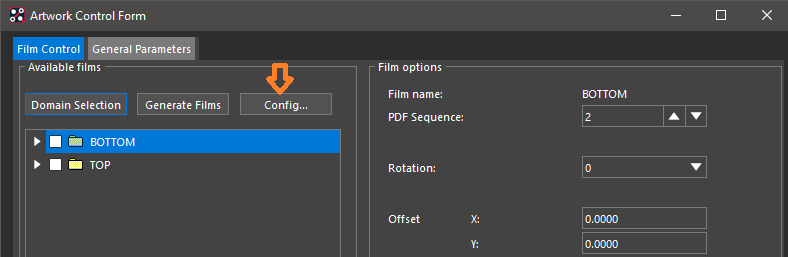
4. Left-click>Config... on the Film Control form.
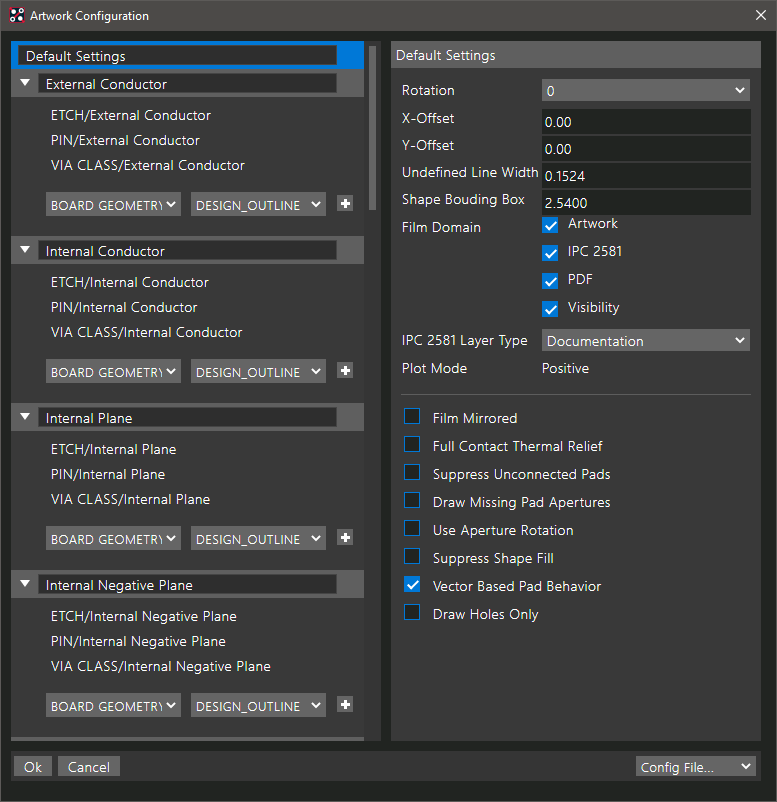
The Artwork Configuration form is displayed. For this example, the defaults will be fine, so scroll through if you want to examine the values and left-click>OK to accept the defaults.
Left-click>Yes on the message about the regenerating the Film records and the additional Films will be added to the Film Control form.
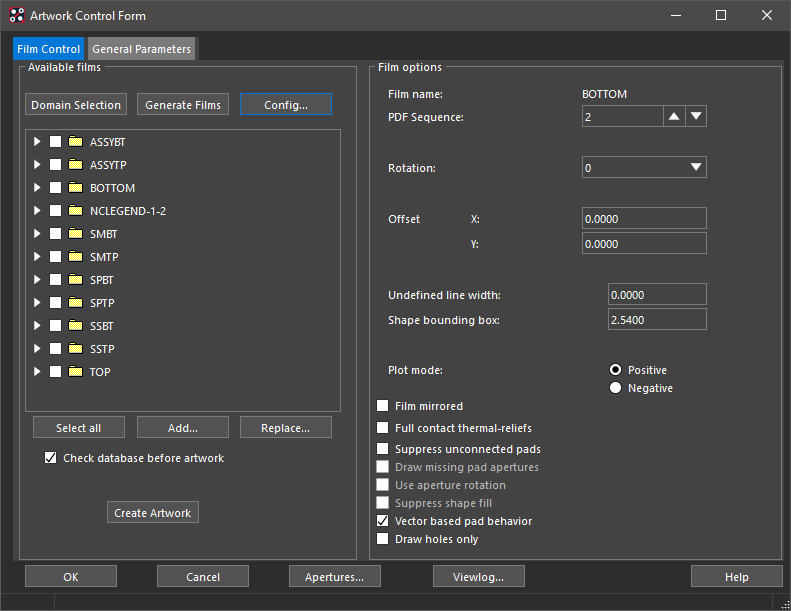
Left-click>Select all to create all of the Films and left-click>Create Artwork to create the Gerber data.
In the "view of file: photoplot" window that opens, there will be warnings about not having a Photoplot Outline defined and using the Undefined Line Width for some objects. These warnings can be safely ignored and the "view of file: photoplot" window can be closed.
Left-click>OK to close the Artwork Control form.
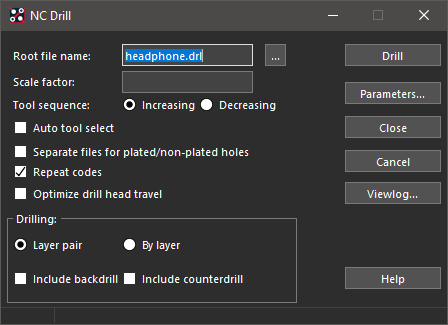
Left-click>Export>NC Drill, the default settings should be fine so, left-click>Drill to create the drill data. Then left-click>Close to close the NC Drill form.
There are numerous reports from PCB Editor. For this example, take Export>Quick Reports and select the Summary Drawing Report from the list.. Look through the created report and then close the report viewer window.
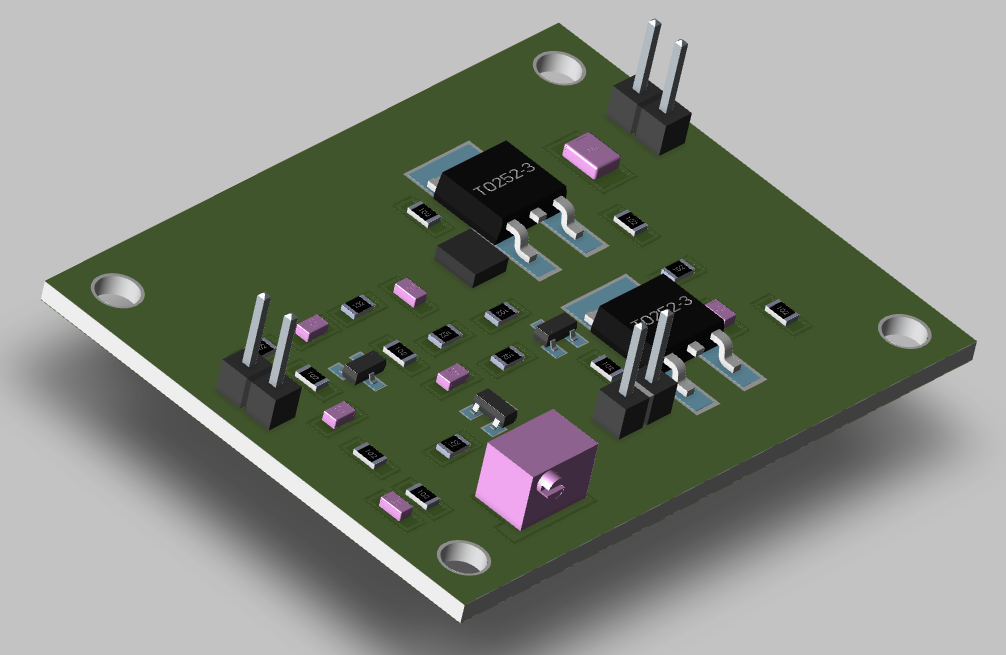
Viewing the completed board in 3D
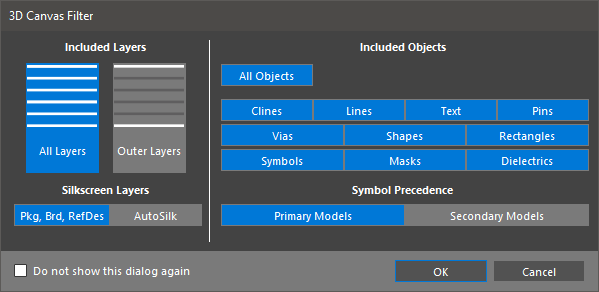
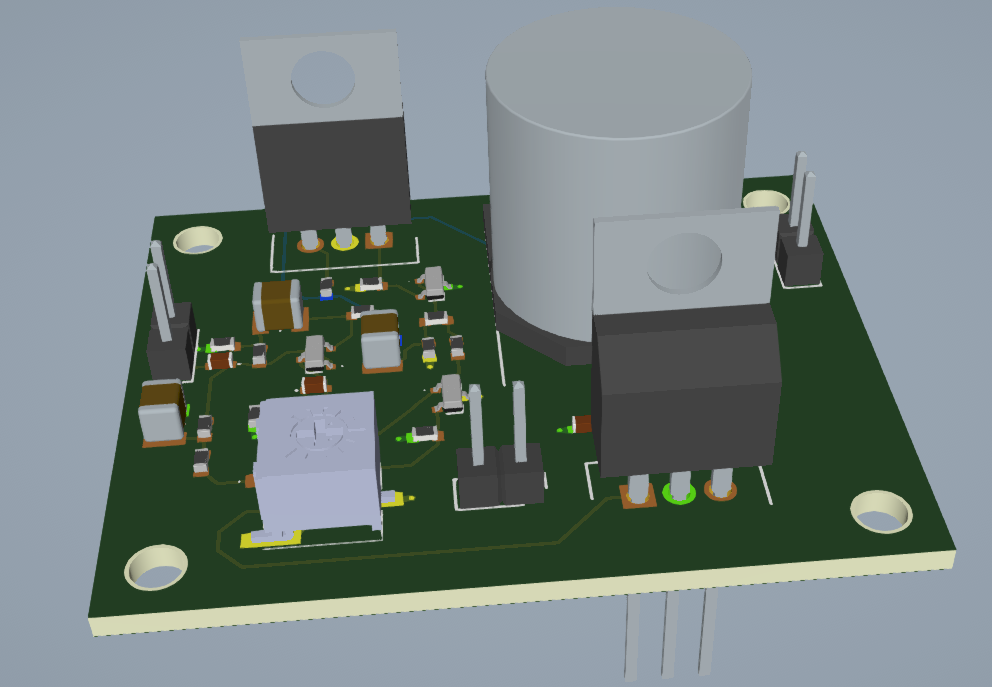
Go to Display>3D Canvas, check that All Objects are enabled and left-click>OK to build the 3D view and open the 3D Canvas. If the provided footprint library was used, the footprints within that will have 3D models mapped and the board will be seen with the assigned 3D models.
Roll the mouse wheel to Zoom., control+middle mouse click to Pan and shift+middle mouse click to Rotate.
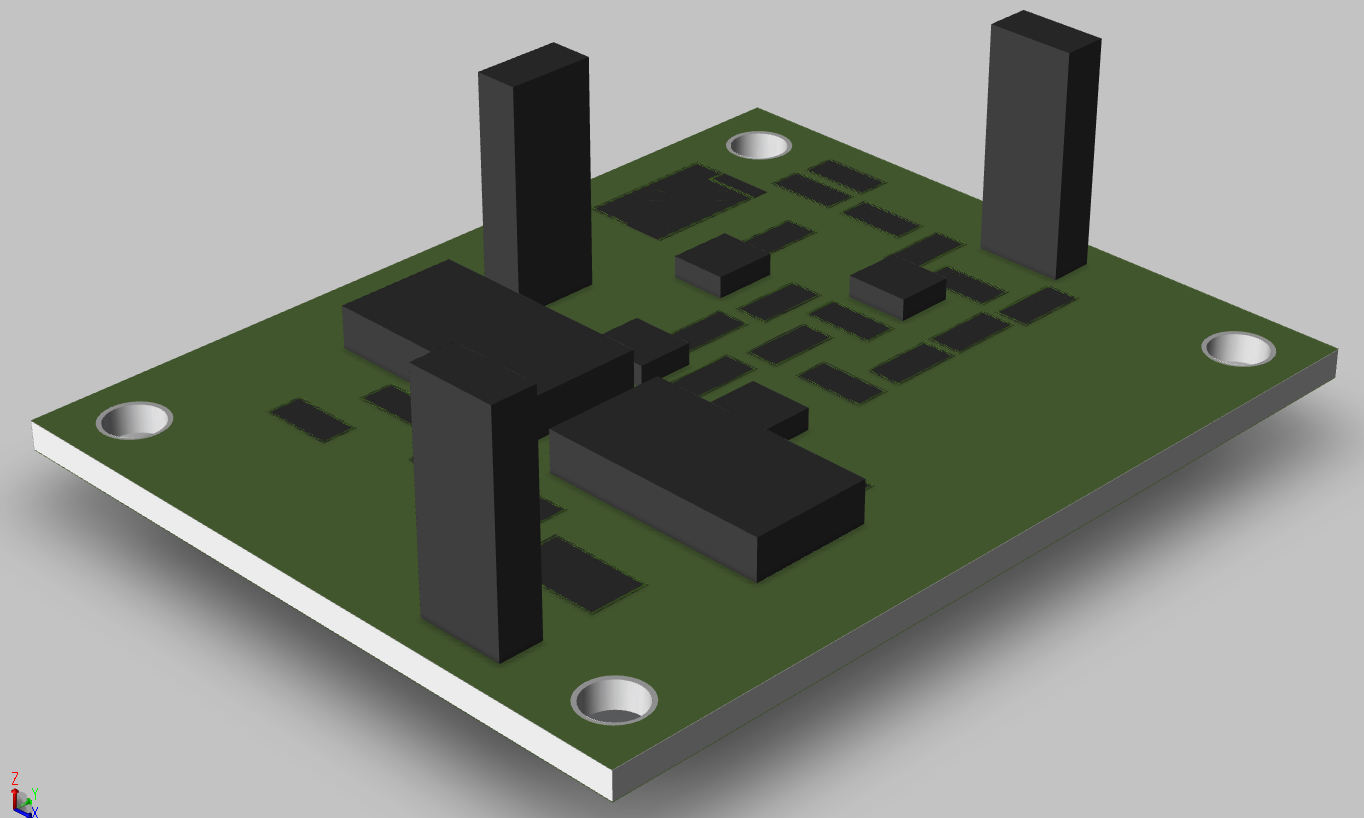
The generic libraries don't have any 3D models provided but the 3D models from the "stepGeneric" folder of the downloaded data could be mapped. The footprints from the online sources may have 3D models as part of the download for the selected parts but, typically, they won't be mapped.
The image below is from an example placement of the components using the generic libraries. This is only using the Place Boundaries and assigned heights so the display has no model details.
To illustrate the 3D model assignment, the parts from the board using the generic libraries will be mapped to a 3D model from the downloaded data
In the 3D Canvas view, left-click the 3D Mapper tab to get the 3D Model Mapper active. At the right, the Models and mapping for the footprints in the design will be shown
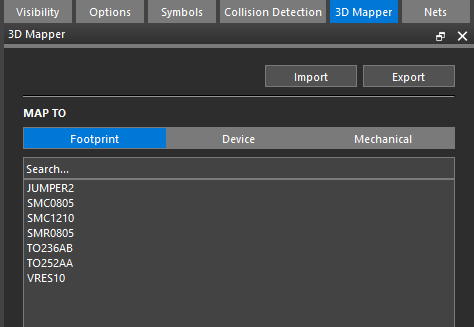
Left-click one of the footprint entries to see the footprint(s) highlighted in the canvas. The lower section of the 3D Mapper tab, the ... button for Model File will allow browsing for the 3D Model to assign. In this first case, the Jumper2 STEP Model is assigned and mapped correctly, that isn't always the case as following examples will show.
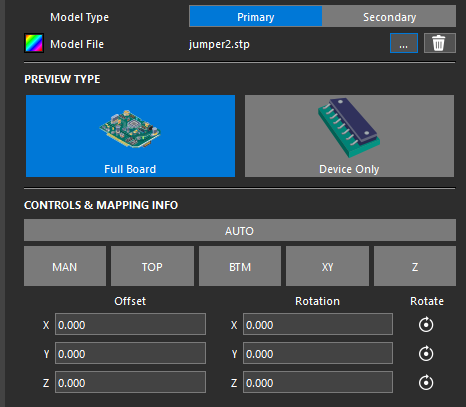
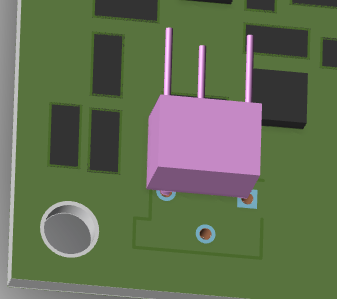
Next the 3D Model for the VRES10 will be mapped. Follow the previous steps to get the VRES10 STEP Model assigned. It's clear from the 3D view that the mapping is incorrect.
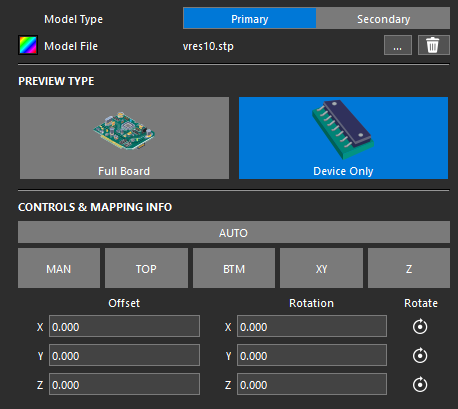
Change the mapping option from Full Board to Device Only. This will display just the specific model to be mapped and make mapping much easier
Left-click the Auto button in the mapping options to see if the mapper can work out the mapping from the component and 3D Model. That doesn't work well in this case so some more mapping will be required. Manipulate the 3D view using the middle mouse controls above so that the bottom face of the 3D model is in view. Left-click the Top button in the mapping options and hover the mouse over the bottom face of the 3D model and left-click.
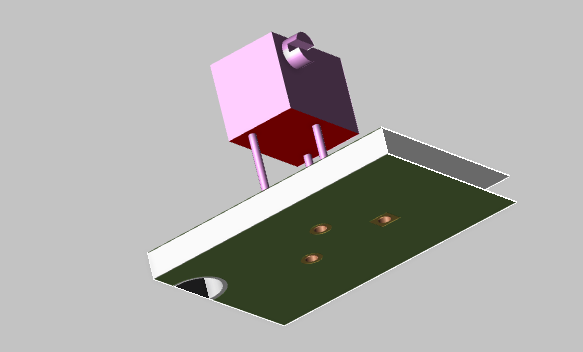
That is looking better, in that the face gets mapped but the mapping still isn't ideal as the Pins aren't aligned.
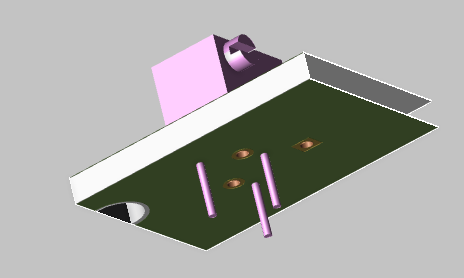
There are a couple of ways to fix this. Firstly with the XY: The XY function may need the rotation set before the mapping can be completed so, in this case, set the Z rotation to 0, then left-click the XY button in the 3D Mapper.
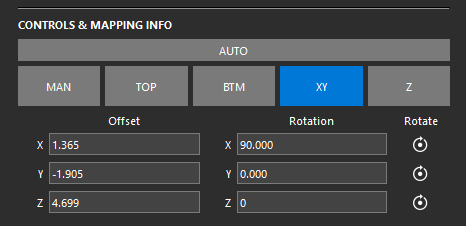
Use the middle mouse controls to get to the bottom view of the Pins and board. Left-click the "head" of two of the Pins.
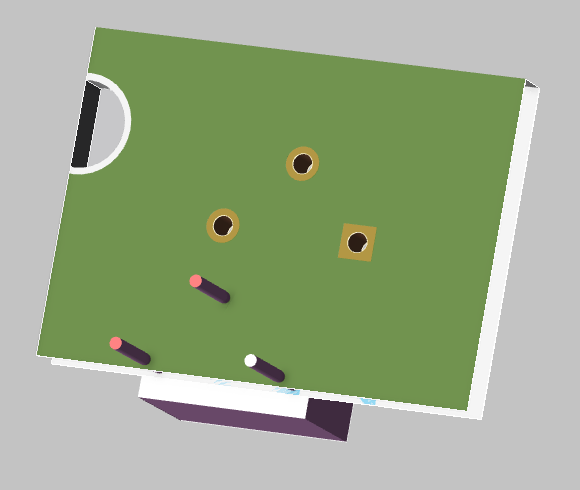
Left-click on the two holes that the Pin will mount through and right-click>Snap.
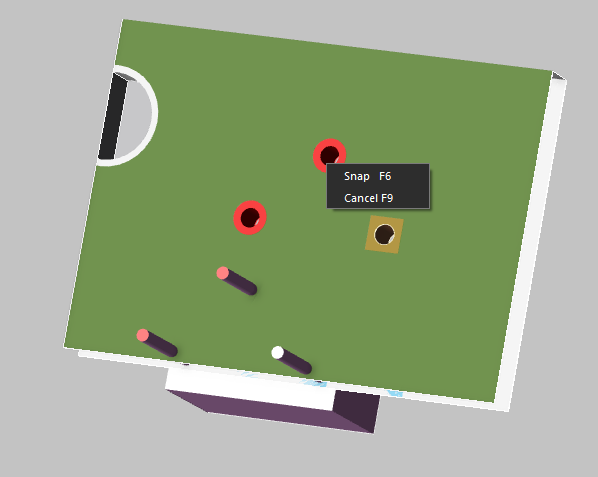
After the "snap" has happened, the Pins and Holes will be aligned.
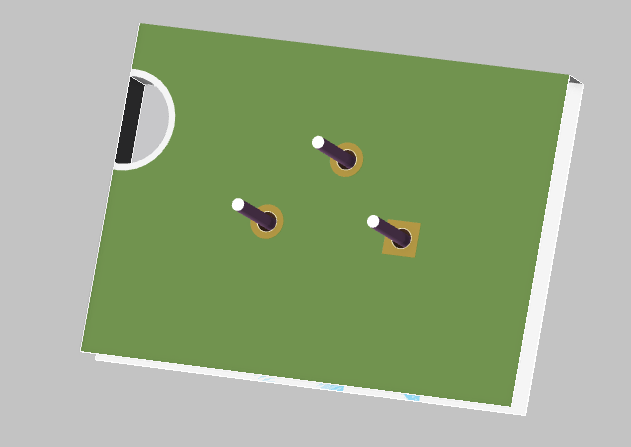
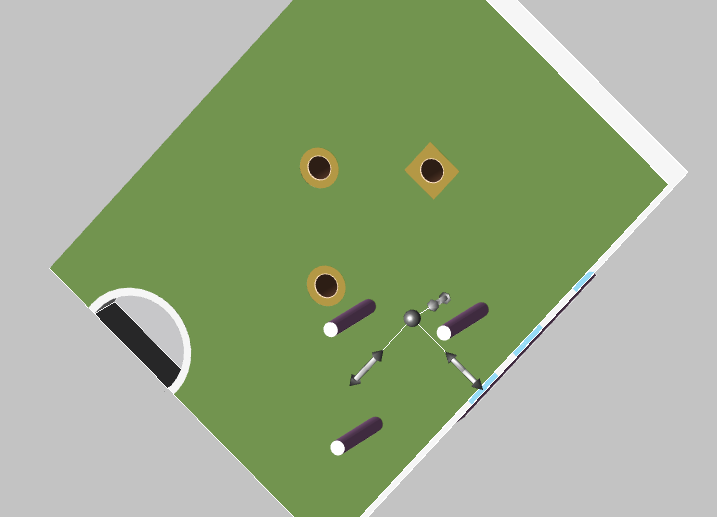
The XY and "snap" works well for through pins since there is a clearly defined location for the Pin. This doesn't usually work as well for surface mount pins as the pads are larger and there isn't such a clearly defined location. The other method is to use manual alignment. Left-click the Man(ual) button in the 3D mapper.
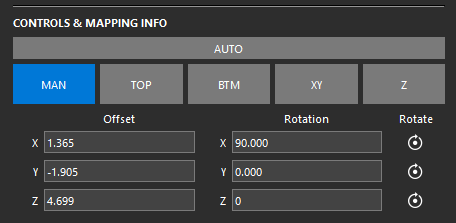
This will activate the 3D axis on the part so that a left-click and drag on an axis will move the 3D model along that axis. The middle mouse controls can be used to maipulate the view of the model to check that the mapping is accurate.
The next image shows the final mapping parameters for the VRES10 footprint.
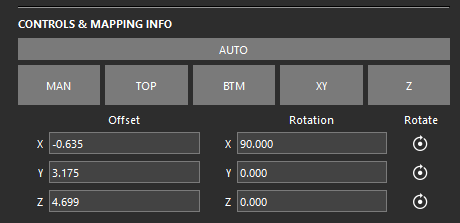
Here are the mapping parameters for the remaining generic parts
The next image shows the 3D view after all the 3D models have been assigned and mapped.
Copyright © 2026, Parallel Systems Ltd.
All rights reserved.
OrCAD Tutorial Introduction