
All content Copyright 2022 Parallel Systems Ltd.
Start PCB Editor from:
Start (Windows Icon) >Cadence PCB 17.4-2019>PCB Editor 17.4
The PCB Editor Canvas opens.
1. Select File>Open from the PCB Editor main menu.
2. If necessary, set the File Type for Board (*.brd)
3. Use the Browse button to navigate to the C:\OrCAD_Training\PCB_Designer_Advanced directory, select the vision.brd file and left-click on Open
4. Use Analyze>Workflow Manager to open the Workflow Manager.
5. Change the Impedance Workflow dropdown to Coupling Workflow.
6. Change the Analysis Modes dropdown to from Net Based to Directed Group.
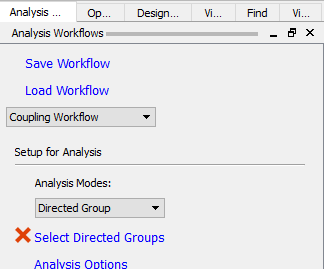
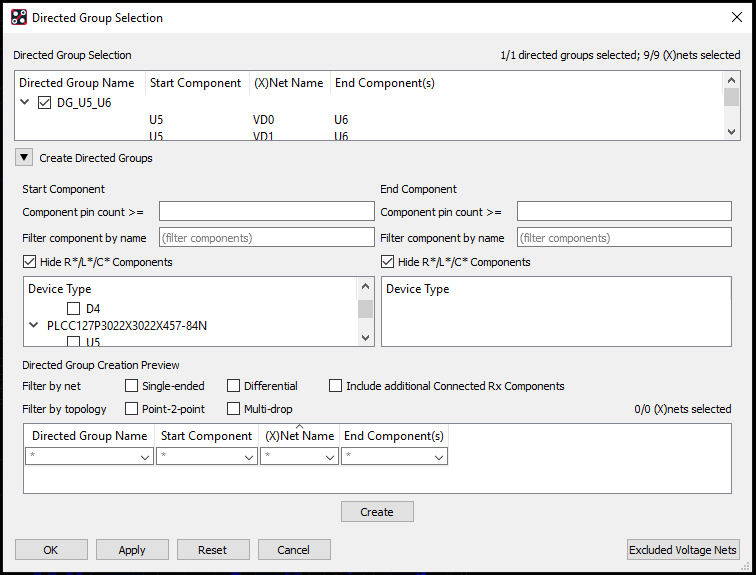
7. Left-click>Select Directed Groups, check the Hide R*/L*/C* Component checkbox for both Start and End Components then choose U5 as the Start Component and U6 as the End Component. (Multiple components can be selected in the form if required). Left Click>Create then Left Click>OK. This only enables the nets between the two selected components.
8. Left Click on Analysis Options and set the GeoWindow to 1. (Size of the window used for coupling). Left Click>OK.
9. Left Click>Start Analysis and wait for the processing to complete.
10. Left-click>Coupling Vision to see the coupling colouring overlaid on the canvas.
11. Hover the mouse over any of the traces to see a datatip describing the results of the coupling analysis.
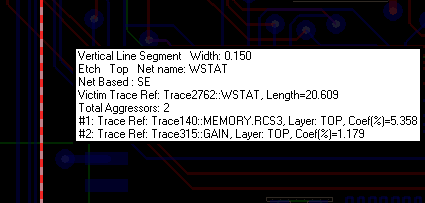
If time permits investigate why there is a coupling issue on some of the nets. You can try using the slide command to separate the routing and the re-run the Analysis to see the results.
12. Left-click>Coupling Vision to remove the Coupling Vision from the canvas and left-click the “X” to close Workflow Manager.
When you close the board file you will be asked if you want to save the Analysis Data, for the purpose of the course, do not save this data or the board, we will use the same design in a lab later on.

End of Lab
All content Copyright 2022 Parallel Systems Ltd.