
All content Copyright 2022 Parallel Systems Ltd.
1. Open the routed.brd file, if not already opened from the last lab.
If the MCLK net is Fixed from the autorouter lab, skip to step 10, otherwise:
2. Select Edit>Object Properties from the top menu.
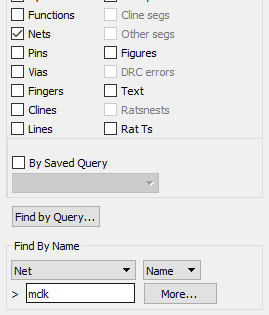
3. Move the mouse to the Find Filter, turn All Off and toggle Nets ON.
4. In the Find By Name field, change the field to Net and type in the net name mclk
(or select MORE to scroll to find the net name in the list).
This brings up the Edit Property form.
5. Scroll in the Available properties for FIXED.
6. In the Edit Property form, toggle the Fixed setting to TRUE if required.
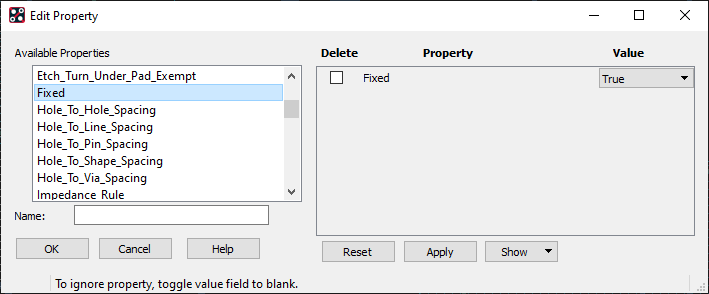
7. Left-click>Apply.
Notice that the Show Properties form shows you that the net MCLK now has the FIXED property associated with it.
8. Left-click>OK to exit the Edit Property form.
9. Right-click>Done from the pop-up menu.
10. Select Route>Gloss>Parameters from the top menu.
11. Uncheck the Via Eliminate option and left-click on the grey square to the left of Line Smoothing to check the settings, leave all settings to their defaults, except set the Number of Executions to 5.
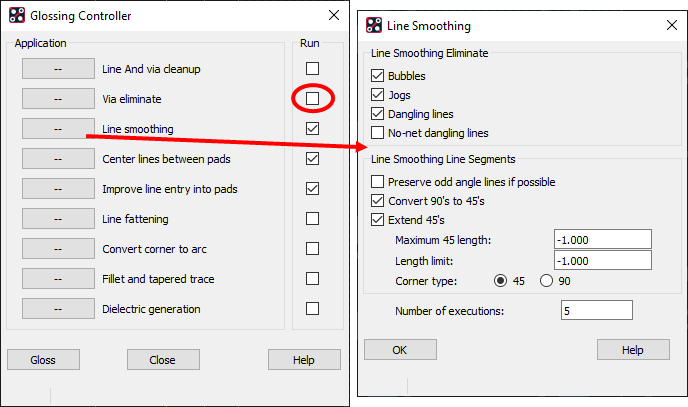
Leave the other settings as they are.
12. Left-click>OK to accept the options.
Be aware that some of the glossing routines can take a long time to complete, the selected functions should complete in about a minute, or so, with the default parameters.
13. Left-click>Gloss in the Glossing Controller form.
The Glossing routines will run. You will see the traces being moved, and corners will change from orthogonal to diagonal and so on.
14. After Gloss has finished, you may view the gloss log file by selecting File>Viewlog from the main menu. If you opened the gloss.log file, close the log file.
15. Check the MCLK net to verify that it was not changed by the Gloss routine.
(Because it was Fixed)
16. Select File>Save As from the top menu.
A browser form appears.
17. In the File Name field, enter:
gloss
18. Left-click>Save.
The file gloss.brd is saved to disk.

End of Lab
All content Copyright 2022 Parallel Systems Ltd.