
All content Copyright 2022 Parallel Systems Ltd.
1. Use Display>3D Canvas from the menu. (Or use the 3D icon)
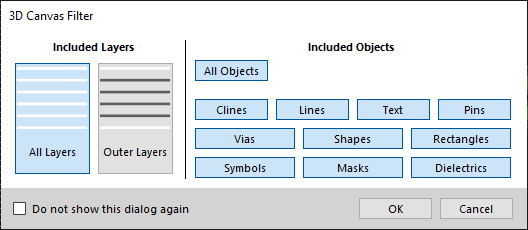
The 3D Canvas filter will be displayed, this screen shot has “all” enabled
The board will be shown in an isometric view, similar to the following picture. (All enabled)
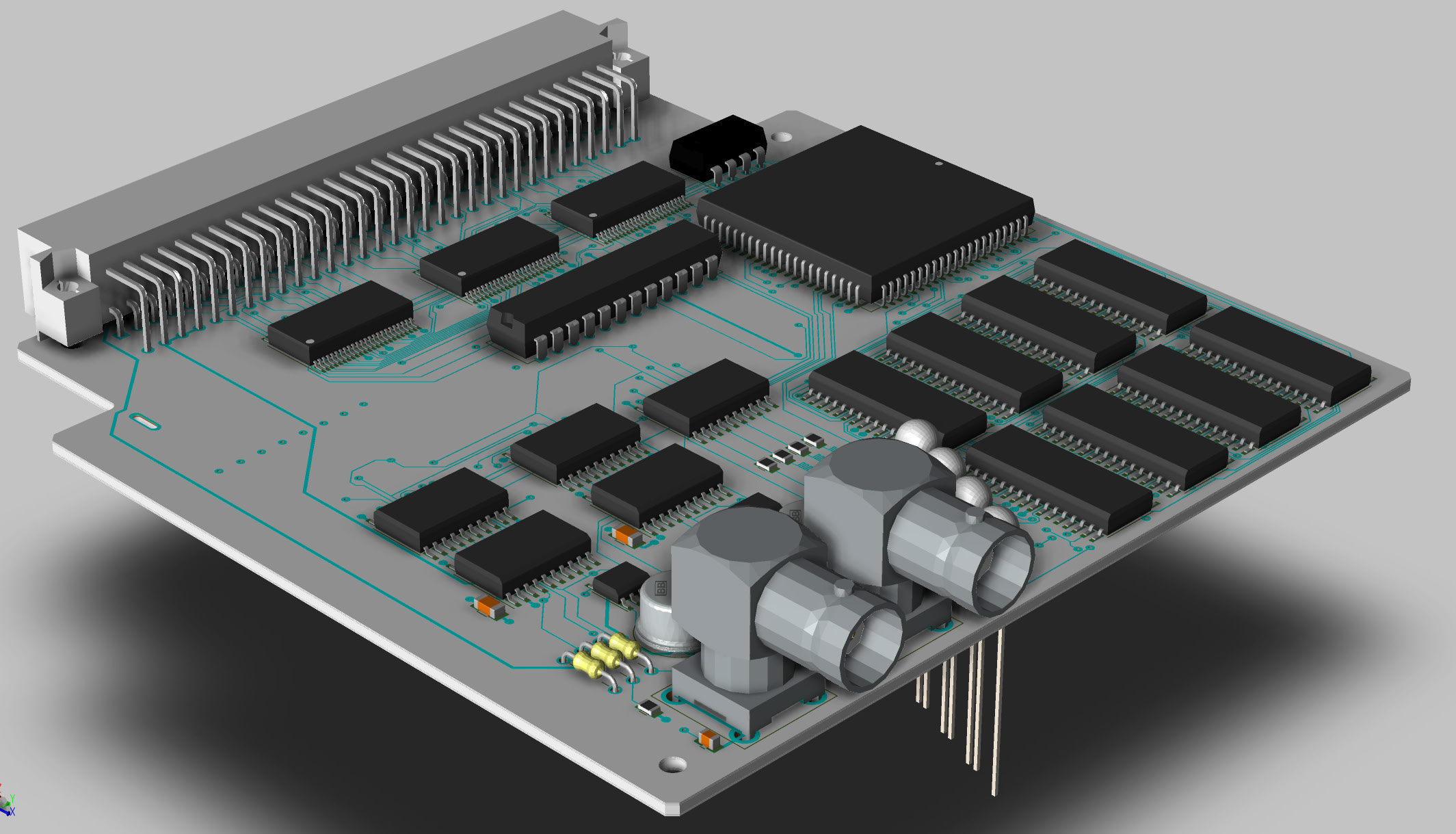
(You may need to turn on the Package Geometry / Place Bound Top and Bottom and all the Etch Layer colours, in Visibility, to get the view above displayed)
2. Hold the Middle Mouse Button and drag to move (pan) the view around.
3. Roll the mouse wheel to zoom in and out. (The Shift key won’t affect this)
4. Hold down Shift Key and hold the Middle Mouse Button and drag to rotate (spin) the board in the view.
Experiment with the mouse view functions.
5. Close the 3D Canvas and go back to the main PCB Editor window.
6. Zoom into the channel areas. (Lower right of the board when viewed normally)
7. Hover over a net (Change to Etch Edit Mode, or use the tab key to toggle to Net)
8. Right-click>3D Canvas to get a 3D view of the net.
The Net 3D view will be similar to the following picture – depending on the net selected – use the mouse view functions described previously to navigate around the net.
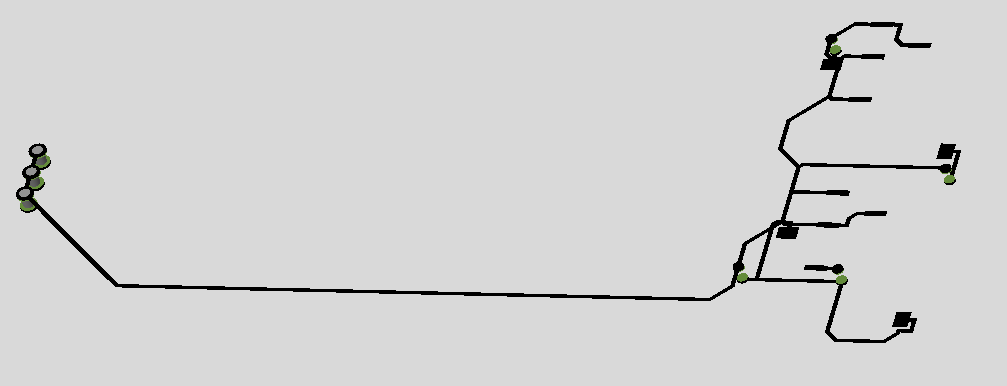
(If required, repeat the net selection to get a “more interesting” net to view)
9. After examining the net return to the main PCB Editor window and hover over one of the LEDs, around the middle right of the board.
(Select General Edit Mode if necessary to select the component, use the tab key to move around the items)
10. Right-click>3D Canvas to get a 3D view of the component, as in the following picture.
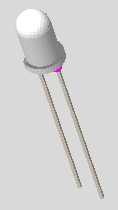
(This LED STEP model came from an internet source and includes the original lead length)
11. If time permits, experiment with the menu options inside the 3D Canvas
Use Visibility tab in the 3D Canvas to View / Hide layers
Setup>Preferences can be used to change colour themes and configure cutting planes
Export STEP from File>Export, note that this exports the View from the 3D Canvas with the enabled items in the export. (This can result in very large step files if all of the layers and routing objects are enabled)
End of Lab
All content Copyright 2022 Parallel Systems Ltd.