
All content Copyright 2022 Parallel Systems Ltd.
1. If necessary, start OrCAD Capture, or OrCAD Capture CIS
2. Select File>Open>Project from the top menu.
The Open Project window appears.
3. Navigate to the C:\OrCAD_Training\Capture\intro directory.
4. Select intro.opj and left-click>Open.
5. If necessary, double-click on .\intro.dsn, then double-click on Schematic, and double-click on PAGE1 to open Page1 of the project.
6. Enlarge the schematic window and left-click the Zoom to All icon. 
7. Select a part by left-clicking on it with the mouse.
Observe the dashed boundary around the part.
8. Left-click on a wire to select it.
Observe that the wire segment highlights and selection boxes appear at its endpoints.
9. Zoom in and left-click on a text string (for example, a net name or reference designator) observe that the text string highlights, and selection boxes appear around it.
10. Left-click on capacitor C1. Hold the Control key down and left-click on capacitor C2. Both parts are now selected.
11. Hold the Control key down and left-click on capacitor C2 again.
Capacitor C2 is then deselected.
12. Left-click anywhere in the page (away from parts or wires).
This deselects all objects in the page.
13. Press and hold the left mouse button, and drag a rectangle around capacitors C1 and C2. (Be sure to include the power/gnd symbols and wires.)
All parts, wires, and text within the rectangle are now selected.
14. Press the Esc key to deselect all objects.
15. There are three ways to get to the Selection Filter which allows what can be selected to be refined.
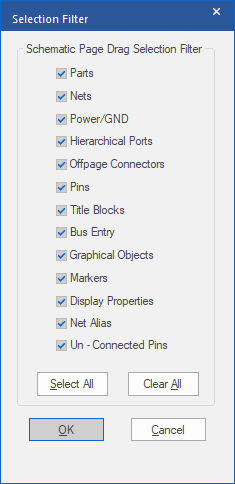
a. From the View pull-down menu, select Selection Filter.
b. Place your cursor in the schematic page window. From the right mouse button select Selection Filter.
c. The third method is to simply use the hot-keys: Control+I
16. When the Selection Filter dialog box appears, select Clear All.
17. Then left-click on the check next to Nets as shown in the next screenshot and left-click>OK.
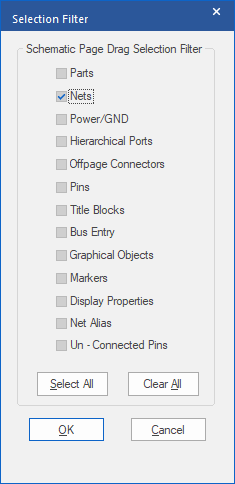
18. Drag a box with the mouse around everything on the current page and notice that only the Wires (or Nets) are selected.
19. Left-click once in an open area, away from any selected items, to deselect the items.
20. Return to the Selection Filter and left-click>Select All to enable selection of “any” item.
21. Left-click>OK to close and apply the setting.
End of Lab
All content Copyright 2022 Parallel Systems Ltd.