
All content Copyright 2022 Parallel Systems Ltd.
1. If OrCAD Capture or Capture CIS is not running, see Lab 1-1
2. If you have any designs open from the previous lab sessions, close them now.
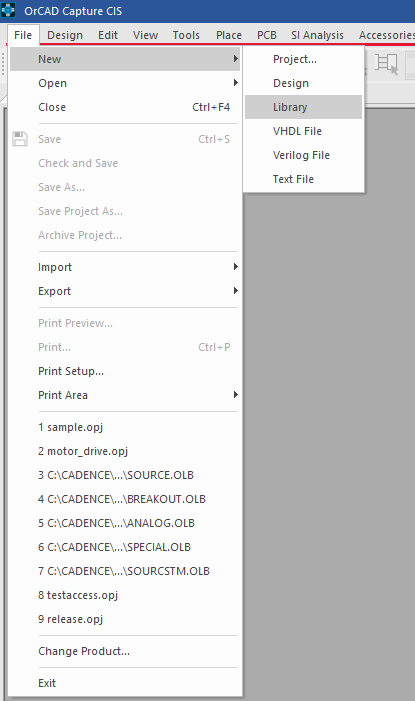
3. In the main session window, select File>New>Library.
The Project Manager window appears.
A new library file is listed under the Design Resources folder.
4. In the Project Manager window, left-click on the library file library<n>.olb.
(The letter n will be the number 1 or greater.)
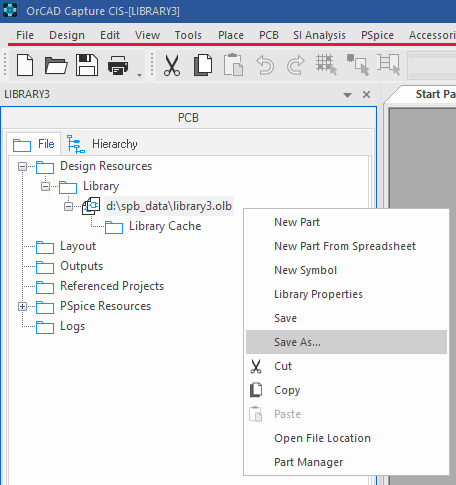
5. Select File>Save As, or right-click>Save As, and set the name to Trng.olb
6. To set the Save in field, navigate to the
C:\OrCAD_Training\Capture directory.
End of Lab
All content Copyright 2022 Parallel Systems Ltd.