
All content Copyright 2022 Parallel Systems Ltd.
1. In the Project Manager window, left-click the .\Lesson10.dsn entry.
2. Select Tools>Cross Reference from the top menu.
The Cross Reference Parts window appears.
3. In the Report section, set the options as shown below.
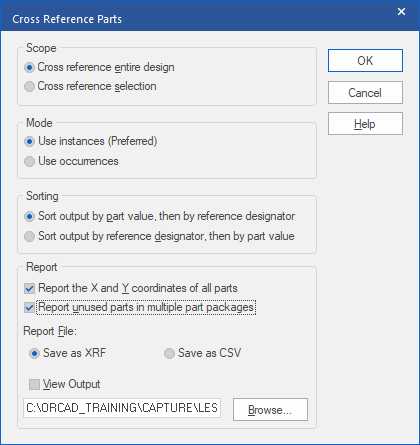
4. Left-click>OK.
The cross reference report is generated and listed in the Outputs folder in the Project Manager. Double-click on the entry to display the report. This report shows where each part is located in the design (Sheet number) and lists the “spare gates” at the bottom of the report.
(Note that, if you use the “View Output” option, you may get a message about File Associations not being found for the XRF extension, this is down to how Windows now manages file extensions)
5. Close the report window.
6. In the Project Manager window, left-click the .\Lesson10.dsn entry again.
7. Select File>Save from the top menu.
This saves both pages of the design.
8. Close both schematic page windows.
End of Lab
All content Copyright 2022 Parallel Systems Ltd.