
All content Copyright 2022 Parallel Systems Ltd.
1. With the property list pivoted along the left (as shown in the last view), left-click in the PCB Footprint field and enter:
DIP16
2. Left-click>Apply and close the Property Editor.
3. Press Esc to deselect the 74F162 part.
4. Double-click on the 74F162 part.
The Property Editor window is displayed. Observe that the PCB Footprint property value is set to DIP16.
5. Left-click the DIP16 property value, and left-click the Display button at the top of the spreadsheet.
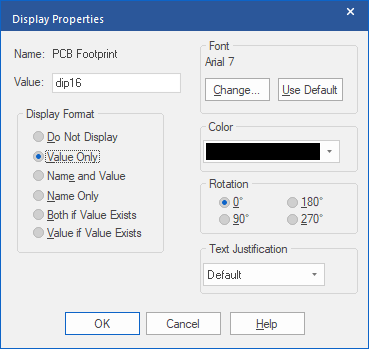
The Display Properties window appears.
6. In the Display Format section of the window, left-click the Value Only option, and left-click>OK.
7. Close the Property Editor.
The PCB Footprint property value DIP16 is now visible in the schematic.
8. Press Esc to deselect the 74F162 part.
9. Select File>Save.
10. Double-click on the 74F162 part.
11. In the Property Editor, left-click>New Property.
The Add New Property window appears.
12. In the Name field, enter:
PART_NUMBER
13. In the Value field, enter:
20-67890
(Checking the Display On / Off option will open Display Options after the OK is clicked to add the property.)
14. Left-click>OK.
Notice the property name and value in the Property Editor window.
15. Close the Property Editor.
16. Press Esc to deselect the 74F162 part.
17. Save the design.
18. Double-click on a wire with the name of LOAD to select it.
Observe the net name in the Property Editor window. Also observe that the Schematic Nets tab is automatically selected based on the type of object you picked.
19. Toggle the Filter by field to OrCAD PCB Designer Professional.
This filter list the net properties you can use for OrCAD PCB Editor.
20. Using the above mentioned Filter, set the MIN_LINE_WIDTH to 20.
21. Reset the Filter by field to <Current Properties>, and close the Property Editor.
22. Press Esc to deselect the wire.
Note
You can change a net name by editing the properties of a wire using the Aliases entity filter at the bottom of the Property Editor. Or you can double-click on the net alias text, and use the Edit Net Alias window.
23. Save the design.
End of Lab
All content Copyright 2022 Parallel Systems Ltd.